
Hi, guys!
Windows Server 2016 RTM is closer than you think and here is the list of new improvements in RDS .If you would like to suggest new feature or you have something that you want to share with Microsoft staff , please use Remote Desktop User Voice Forum
Update: Windows Server 2016 is available for evaluation
MultiPoint Services
MultiPoint Server (MPS) is a technology and solution based on Windows Server and Remote Desktop Services. MPS was originally built for use in the classrooms and educational institutions and It allows you to provide low-cost sharing between MPS and user stations. User stations can be consist of only monitor, keyboard, mouse (zero clients) and be connected to MPS through USB (usb hubs), video cables or through LAN (RDP-over-LAN, if clients are not zero. for example, laptops, thin clients) MPS uses some of the RDS services (by default): RD Session Host and RD Licensing Server.
Microsoft announced that MultiPoint Server will be moved to Windows Server 2016 as a new server role called as “MultiPoint Services”. It’s also a new RDS deployment type.

Please read my post that covers MPS in details
Personal Session Desktops
I hope you know VDI has limitations when it is used in SPLA scenarios (see my post VDI and SPLA) or more simply, you can’t share your VDI infrastructure based on client OS to customers under SPLA. Workaround is to provide session-based desktops to users with Windows Server inside (VDI with Windows Server as guest OS/gold image is also unsupported). To simplify it Microsoft has added new RDS collection– Personal Session Desktops (PSD). PSD allows administrators to create a session-based collection where each user is assigned to dedicated RD Session Host.
In many RDS deployments Windows Server uses Desktop Experience (helps Windows Server to look as Windows Client OS). Windows Server 2016 brings a some improvements to Desktop Experience as well.
Update: Windows Store Client, Edge and Modern calculator were included to Windows Server 2016 TPs with Desktop Experience (temporarily). These features are replaced with Windows Store Business, Internet Explorer 11, Classic calculator respectively
Let’s look to some scenarios:
- If you want to assign user who familiar with Windows 10 only (for example) , it’s easy to achieve it by using PSD and Desktop Experience feature.
- If user also has administrative privilege on desktop and you are moving him or her to PSD , PSD allows you to add these users to local admins on related Session Hosts so they can install/remove and do anything on PSDs.
- If user wants to have applications that require accelerated graphics , you can implement PSD with new RemoteFX capabilities (below)
PSD was firstly announced in TP2 and has changed in TP3/TP4. We have only one way to implement Personal Session Desktops – PowerShell. There are no any options in GUI to create and manage this type of collections. A graphical user interface is going to be added to the Server Manager for Remote Desktop Services in a future release (I do not expect it until RTM release)
For demo purposes I use Quick Start deployment type (RDCB, RDWA and RDSH will be installed on the same server)


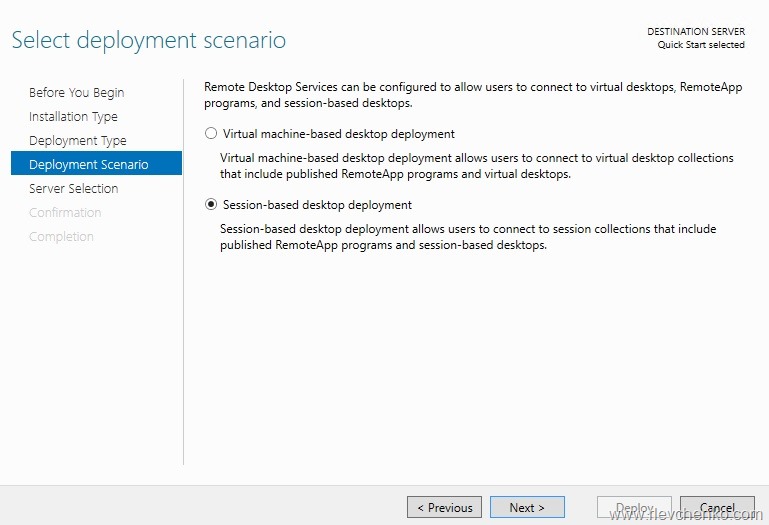

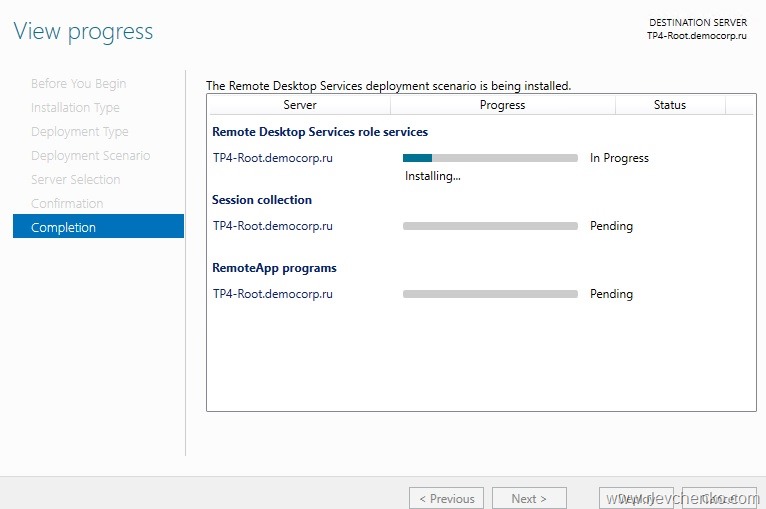

Open PowerShell and type:
#Variable for RD Session Host name
$rdshost="tp4-root.democorp.ru"
To create PDS collection you have to use switch –PersonalUnmanaged (in TP2 was –PersonalSessionCollection)
#Create PDS Collection
New-RDSessionCollection -CollectionName Personal -ConnectionBroker $rdshost -SessionHost $rdshost -GrantAdministrativePrivilege -PersonalUnmanaged

CollectionName Size ResourceType CollectionType CollectionDescription
-------------- ---- ------------ -------------- ---------------------
Personal 1 Remote Desktop PersonalUnmanaged
TIP: If RD SH is already used you unable to create RDS collection . To workaround : remove RD session host from existed collection and try again
New-RDSessionCollection -CollectionName Personal -ConnectionBroker $rdshost -SessionHost $rdshost -GrantAdministrativePrivilege -PersonalUnmanaged
WARNING: The RD Session Host server tp4-root.democorp.ru already exists in another collection.
New-RDSessionCollection : Unable to create the session collection.

Get-RDSessionCollection

CollectionName Size ResourceType CollectionType CollectionDescription
-------------- ---- ------------ -------------- ---------------------
QuickSessionCollection 1 RemoteApp programs PooledUnmanaged

Get-RDSessionCollection|Remove-RDSessionCollection
Assign user to collection
Set-RDPersonalSessionDesktopAssignment -CollectionName Personal -User democorp\rdsuser -Name $rdshost

Get-RDPersonalSessionDesktopAssignment -CollectionName Personal

CollectionName DesktopName User
-------------- ----------- ----
Personal TP4-ROOT.DEMOCORP.RU DEMOCORP\rdsuser
Go to https://<host fqdn>/rdweb , type user’s credential and you’ll see assigned collections
Note: there is no PDS collection in the Server Manager – RDS – Collections list.
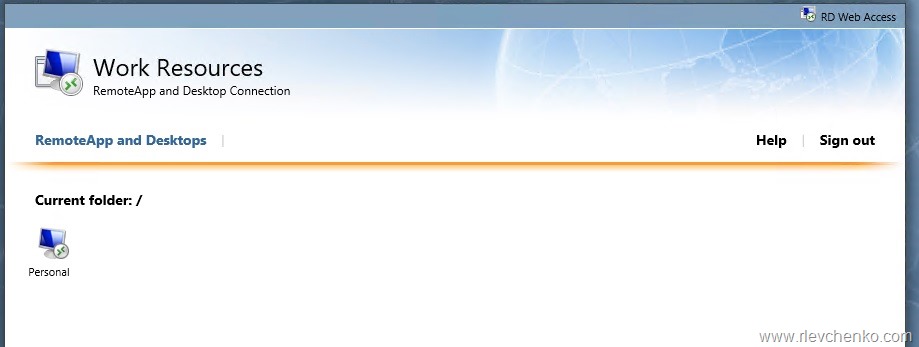
Start Menu:
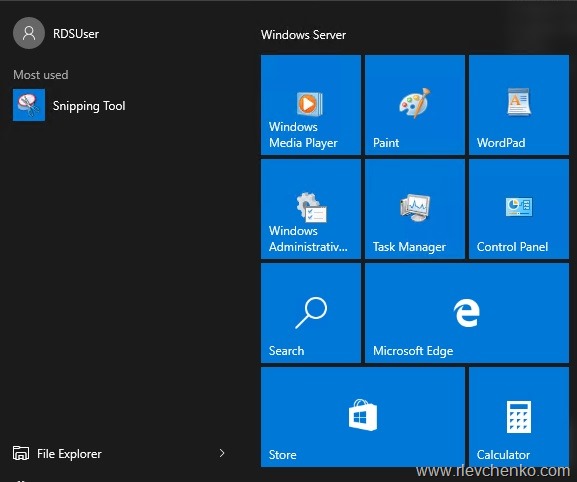
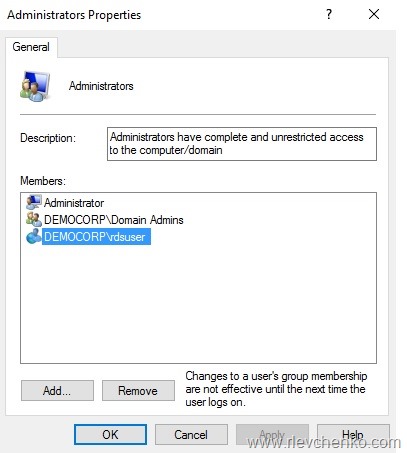
PDS was created with –GrantAdministrativePrivilege switch so my user has been added to local administrators on assigned RDSH (desktop)
RemoteFX Improvements
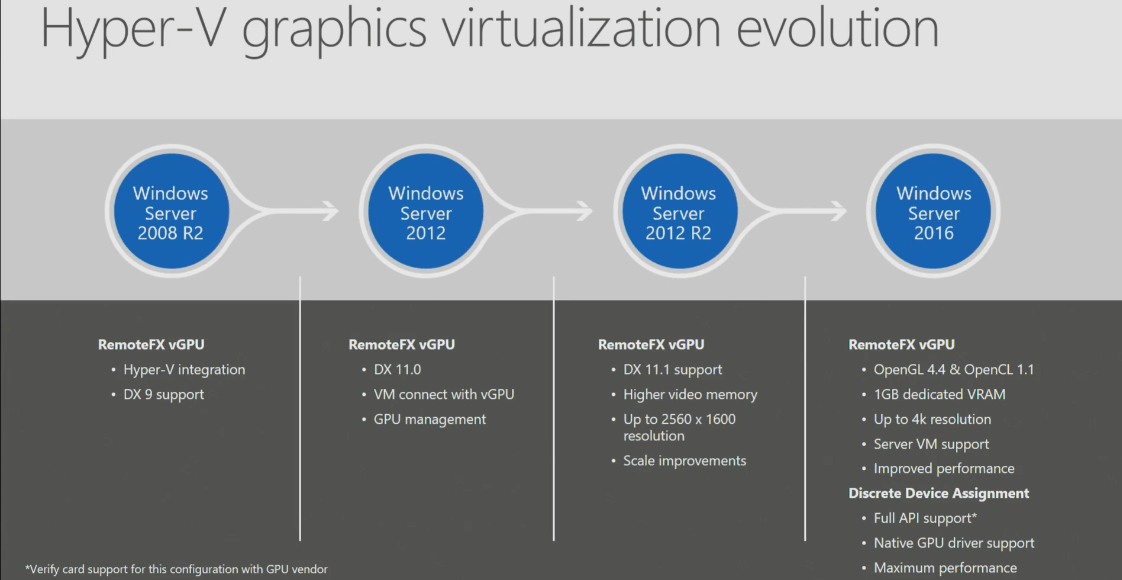
In Windows Server 2012 R2, the RemoteFX video adapter has a limitation of 256MB for the maximum amount of dedicated VRAM it exposed, OpenGL 1.1 (!!) and no support for OpenCL.
In real world RemoteFX in 2012 R2 is not suitable for modern applications such as Autocad Re-Cap (OpenGL 3.3, 1Gb VRAM is required) or Photoshop (CC requires OpenGL 2.0 and 512 MB VRAM at least).
Microsoft has got that there is no time to lose and has updated RemoteFX adapter with some VRAM new capabilities which can brake some limiting factors:
- A larger dedicated VRAM amount (currently up to 1GB) – A VM can now be configured to obtain up to 1GB of dedicated video memory. Depending on the amount of system memory assigned to the VM, this can provide up to a total of 2GB of VRAM (1GB dedicated and 1GB shared (I need to get some more info about it. I’ve never seen this on official slides ..only @msrdsblog))
- Configurable dedicated VRAM – Previously, VRAM was set for a VM dynamically based on the number of monitors and resolution configured for a VM, this association has been removed and now dedicated VRAM can be configured independent of a VM’s number of monitors or resolution. This can be configured using a PowerShell cmdlets in the technical preview.
- OpenGL 4.4 and OpenCL 1.1 API Support
These settings can be configured by PowerShell:
NAME
Set-VMRemoteFx3dVideoAdapter
SYNTAX
Set-VMRemoteFx3dVideoAdapter [-VM] <VirtualMachine[]> [[-MonitorCount] <byte>] [[-MaximumResolution] <string>]
[[-VRAMSizeBytes] <uint64>] [-Passthru] [-WhatIf] [-Confirm] [<CommonParameters>]
P.S. I’ve already mentioned RemoteFX and Discrete Device Assignment in what’s new in Hyper-V Windows Server 2016.
Improved Connection broker performance + Azure SQL DB for RDCB HA
RDCB was a source of a slow connection time in case of logon storm (many users trying to connect to their sessions) in WS2012/2012R2. That’s why there is significant improvement to handle performance during logon storms and when adding/restarting RD Session Host servers to a farm in WS 2016. Supported environments is up to 10k + concurrent connection requests.
Note: there is a specific KB to boost your RDCB performance in WS102R2 as well
Additionally, with Windows Server 2016 release RDS now supports Azure SQL Database as a database server for RDCB HA configuration. More info is available @Technet

Client and miscellaneous updates
List of all and newly added clients :
- RDP has been updated to version 10 (10586 build in TP4/Windows 10) with H.264 codec improvements. RDP (MSTSX.EXE) with H.264/A444 mode now supports 4k resolution and provides a new level of color conversion and improved fps throughput. A444 Mode (4:4:4 format of , 4:2:2 is used by rdp in 2012/2012r2) is enabled by default for all RemoteFX GPUs (DirectX 11.0 + H.264 HW Encoder has to support Level 4.1/BT.709 color conversion).
- (new) Remote Desktop Preview app for Windows 10 and Mac
- RD Client for Android
- RD Client for iOS
- RD Client for Mac
Generation 2 VM Support
We cannot create VDI collection based on Gen2 “gold” VM in 2012 R2. In Windows Server 2016 Gen 2 VM support has been added so you can use all type of generations as base for personal/pooled collections and personal session based desktops. There is no additional configuration required. *
*If you are not familiar with VDI, I’d recommend to read my post Quick VDI Deployment
Pen Devices support in Remote Desktop Sessions
If your device supports pen locally and it is running Windows 10 at least, you can write or draw in the session (previously pen devices redirected but treated like a mouse)
No special configuration is needed. Just connect to remote PC and enjoy
Edge and Office 2016 support
New browser Edge from Microsoft is also supported in Remote Session
Outlook 2016 is supported* in pooled VDI and RDSH deployments (*search under Outlook might be slow or does not work as expected. ’cause search indexing depends on the machine ID, which is different for different VMs and indexer could take a long time to complete)
OneDrive for Business sync client is currently not supported for multi-user environments (pooled VDI and RDSH). Users can connect to their resources using the web interface.
Skype for Business is not supported for RDSH deployments. For VDI deployments use Lync VDI Plug-In
If you have Office 365 subscription and going to integrate with RDSH or VDI check out the following guide in PDF
Planning Poster
Going to migrate, build and run RDS environment? This poster can help you. Click to zoom and save in it’s original size. + don’t forget to bookmark updated RDS section @TechNet

Thanks for reading!





 ), attach ISO that we copied earlier and install OS as usual.

 UseIT | Roman Levchenko