
Hi, folks!
Finally, this is the third and last part of series of posts related with Windows Azure Pack (WAP) and VMM Clouds. Previously we’ve described installation of Windows Azure Pack and Service Provider Foundation. Now it’s time to implement the first cloud service. No doubt the most popular service is VM Cloud. Let’s describe what is it and how to deploy one with WAP.
Requirements
| Component | Requirement | Description |
| Service Provider Foundation | Install and configure Service Provider Foundation | The VM Clouds service in Windows Azure Pack uses Service Provider Foundation to communicate with VMM. So, before provisioning VM Clouds Guide HOW TO |
| Windows Azure Pack | Install and configure Windows Azure Pack | Installation guide: Windows Azure Pack |
| Cloud | In the underlying VMM server that is associated with the Service Provider Foundation endpoint, you must have created a cloud and it’s associated components such as VM Templates, Hardware Profiles, VM Networks, Gallery Items | For clouds to work with Windows Azure Pack, you must ensure that the clouds are created with the following considerations:
HOW-TO is described below |
| Service Provider Foundation service account | The Service Provider Foundation service account must be added to the administrator user role in the VMM server | See below |
| VMM RunAsAccount | To successfully complete all steps in this mini-guide | Create RunAsAccount in VMM and assign Administrator Role |
Register SPF in Windows Azure Pack
- Log in to WAP admin portal (in my case, https://wapportal.domain.com:30091)
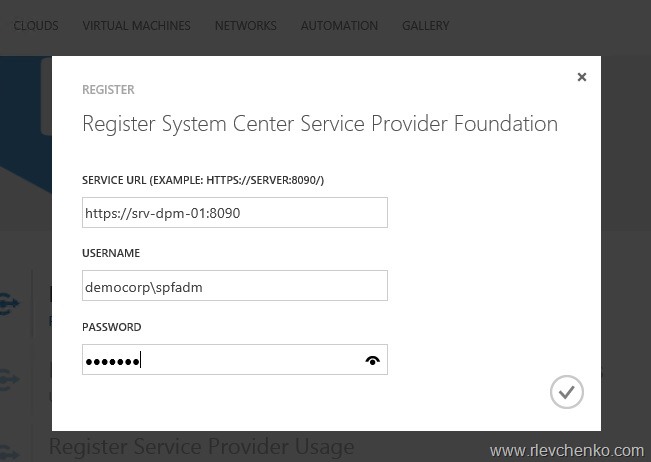
2.Click on VM Clouds and then “Register System Center Service Provider Foundation ”

- Type URL for Service Provider and provide required credentials
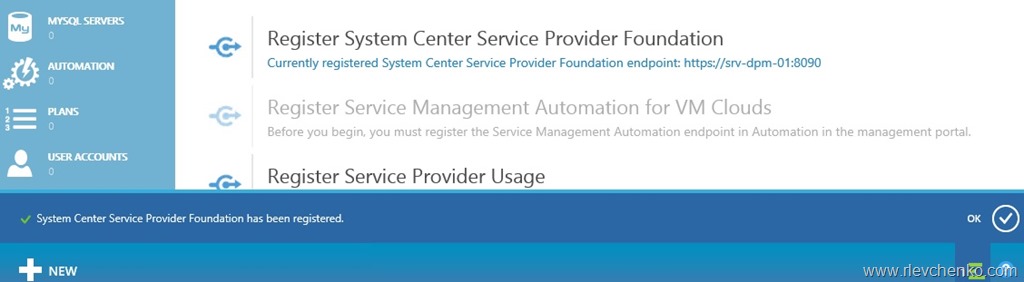
- Verify status of SPF registration. It should be the same as shown on the pic below
Add SPF Service Account as VMM administrator
- Log in to SPF Server, open IIS and note user identity for SPF Pools

- Open VMM Console and connect to VMM
-
Go to Security –> User Roles –> Administrator and add SPF Service account to this role

or use PowerShell:
$UserRole = Get-SCUserRole -Name "Administrator"
Set-SCUserRole -UserRole $UserRole -AddMember Domain\SPFServiceAccount
Create VMM cloud
In this section we create BASIC VMM cloud only for demo purposes.You have to carefully plan/design your cloud components.
- Add hosts to host group (VMs and Services –> right click on host group name –> add hyper-v hosts and clusters“) or PS:
#In my case, host group called as All Hosts and 1 member hv01

$runAsAccount = Get-SCRunAsAccount -Name "Administrator"
$hostgroup =  Get-SCVMHostGroup -Name "All Hosts"
Add-SCVMHost -ComputerName "hv01.domain.com" -VMHostGroup $hostgroup -Credential $runAsAccount
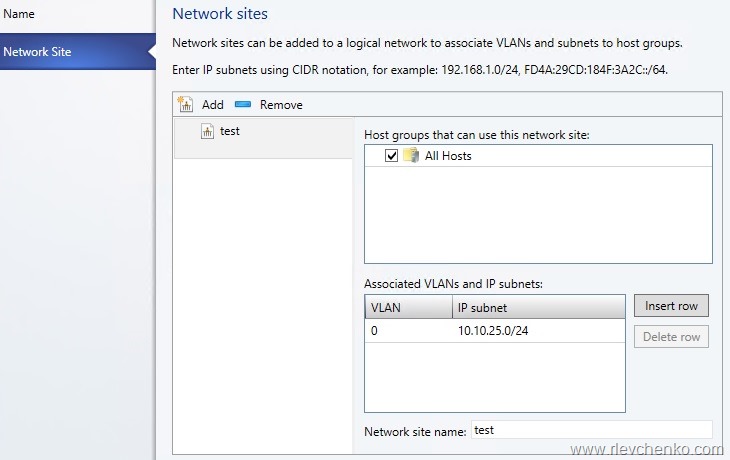
- Add Logical Network (Fabric –Logical Networks – Add Logical Network).
#Create new logical network
$LogicalNetwork=New-SCLogicalNetwork -Name VM -LogicalNetworkDefinitionIsolation $false -EnableNetworkVirtualization $true -UseGRE $true -IsPVLAN $false
$HostGroup =@()
#Get Host Group
$HostGroup += Get-SCVMHostGroup -Name "All Hosts"
#Add VLAN Subnet ID and IP with netmask
$SubnetVLAN = @()
$SubnetVLAN += New-SCSubnetVLAN -Subnet "10.10.25.0/24" -VLAN 0
#New Definition for logical network VM
New-SCLogicalNetworkDefinition -Name VM -LogicalNetwork $LogicalNetwork -VMHostGroup $HostGroup -SubnetVLAN $SubnetVLAN

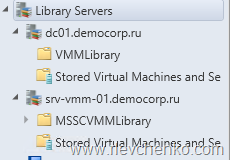
- Add Library server if it has not deployed yet (Library –> Library Servers –> Add Library Server)
#Get Library Servers
Get-SCLibraryServer
Copy sysprepped vhds to Library (highlight library and click “Import Physical Resource” button) or through PS:
Import-SCLibraryPhysicalResource -SourcePath "path to VHDs" -SharePath "\\libraryFQDN\foldername"
In my demo, I use clean 2012 R2 Std with the latest updates.
- Create new cloud (VMs and Services –> Clouds –> New Cloud). Pictures are clickable (see cloud properties from left to right)
Do not forget: You must not select any of the available capability profiles (ESX Server, Hyper-V, XenServer) while creating the cloud.
If you do so, tenants will not be able to deploy virtual machine roles using the VM Clouds service.


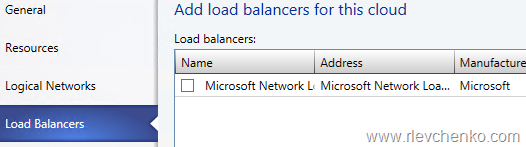


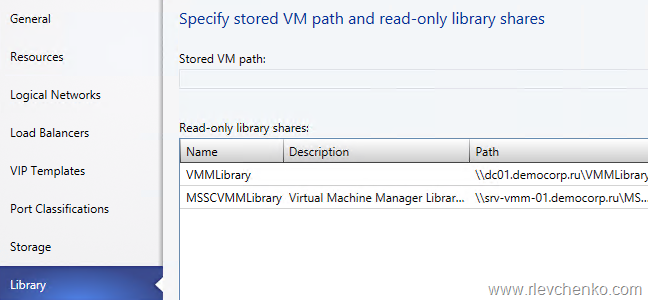


That’s it . Our demo cloud is ready. But it’s not enough.
Now we need to create VM templates.
Create VM Templates
1. Add hardware profiles (Library –> Profiles –> right click –> Create Hardware Profiles). I have one pre-created profile with the following properties:

Create a few profiles for different VM configurations, if it is necessary.
- Go to Virtual Templates – right click and “Create VM Template” , use your sysprepped vhd as a source for VM template

Specify Template Name, Generation ID and choose Hardware Profile (it is not required but let’s do it  ).
).
OS configuration page (my future VMs will be based on 2012 R2 Standard, so you have to verify that the right Operating System is specified):

The next step is VMM registration on WAP portal.
Register VMM in WAP
- Log in to admin management portal (https://wapportal.domain.com:30091)
-
Go to VM Clouds –> Clouds and click on “Use an existing virtual machine cloud…”

- Type VMM server name and Register
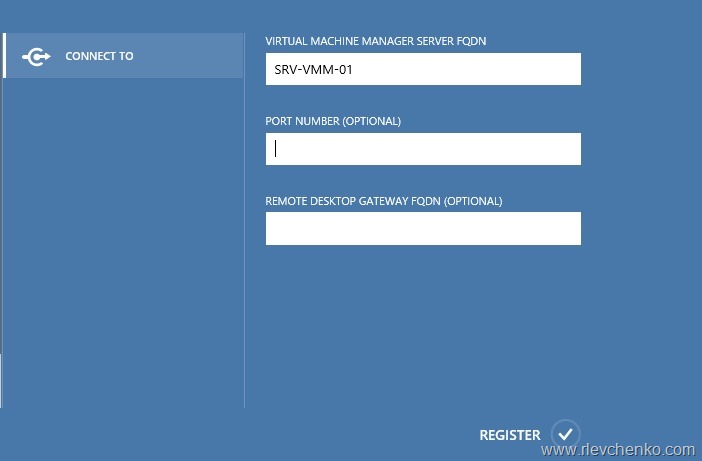
- OMG! Look at this…it is my cloud

Create WAP Hosting Plan
- Go to Plans and click on “Create a new hosting plan”

- Devise friendly name for you plan

- We want to provide VM Clouds

- Just click next
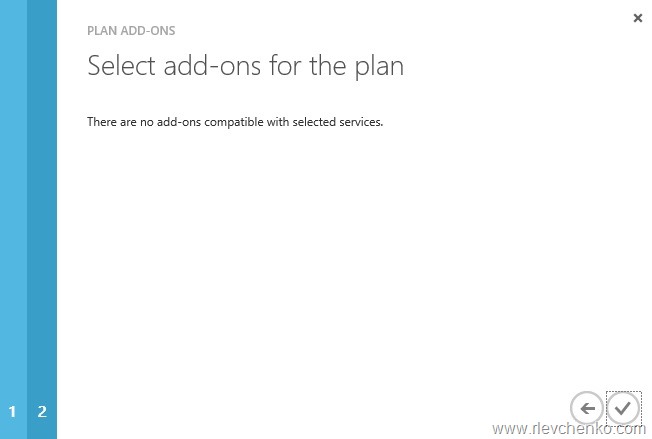
5.Our demo plan is created. Verify that status is green.

- Open newly created plan and go to “virtual machine clouds” service

7.Review and change properties (add virtual network, hardware profiles, vm templates) for service
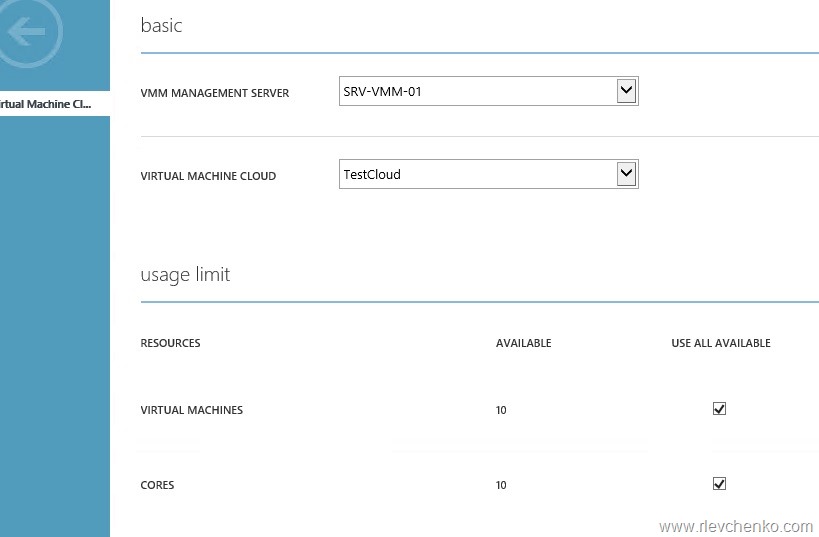
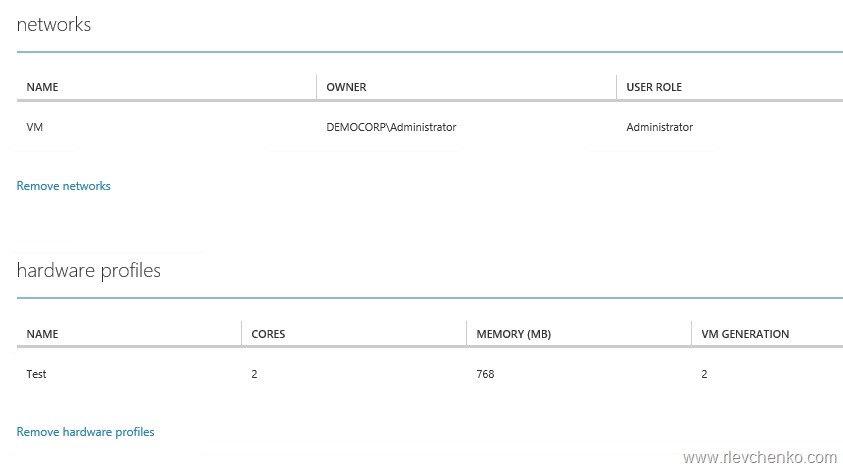


Thanks to gallery items we have options to create workloads (Exchange, Lync,SQL and etc) from gallery (just like in Azure). I will describe it my next posts.
Create new user account for WAP
Finally, we have to create user and map him to our plan with VM clouds service
Go to User Accounts and click on “Create a new user”

Type mail for example, password and choose plan. Click on Create

Our demo user (tenant) is created. Now you can access client management portal using this email address and password.
Create demo VM under tenant account
Open in IE https://wapportalfqdn:30081 and sign-in as tenant, then click on Virtual Machines
Standalone –> Quick Create –> choose template, type Name of VM and admin’s password and click on “Create VM Instance”

Woohooo! As you can see out tenant successfully created testVM and VM is running.
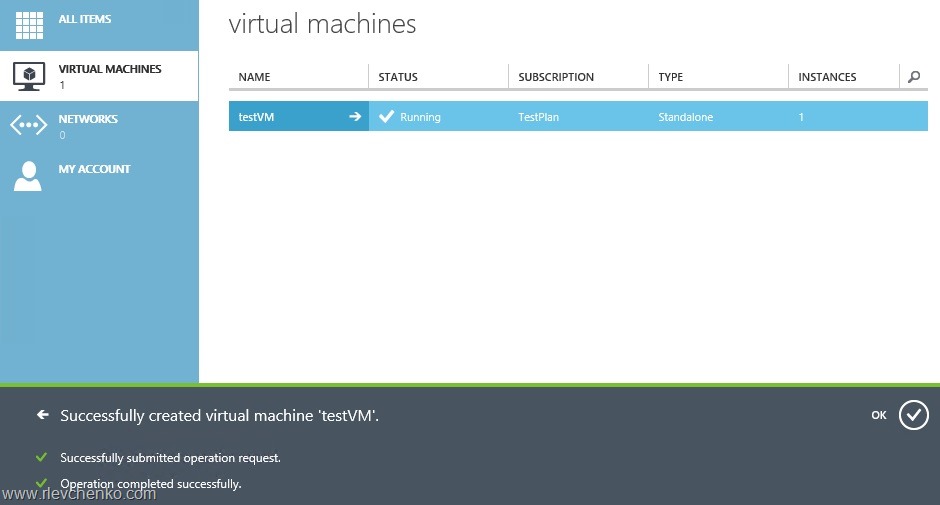
From VMM side (vm creation progress):

User tenants (VMM side):

How to troubleshoot WAP,SPF,VMM
WAP Troubleshooting:
A ton of information you can find here:
https://technet.microsoft.com/en-us/library/dn554311.aspx
My favorite steps:
- SPF Web services are running under the right account (check IIS, link is below)
-
SPF Service account is in Administrator role in VMM (mentioned in this article)
-
VMM Console on SPF server is working without any issues. You can retrieve VMM clouds,profiles and etc.
-
Query https://spffqdn:8090/SC2012R2/VMM/Microsoft.Management.Odata.svc
-
Query https://spffqdn/SC2012R2/VMM/Microsoft.Management.Odata.svc/VirtualMachines
(Turn on feed reading view” should be unchecked in IE)

Additional links:
- The portal cannot load management data for this resource type and account subscription is out of sync
- Step-by-step installation of Service Provider Foundation 2012 R2
- Step-by-step installation of Windows Azure Pack
- Update Rollup 6 for System Center 2012 R2
- Poster: Networking in Virtual Machine Manager
 UseIT | Roman Levchenko