Microsoft has recently published their vision and plans for the future of Windows Azure Pack. This document called as “Windows Azure Pack Roadmap and Future Support” and must be taken into consideration by any service providers who has datacenters based on WAP and related components (SC, Windows Server).
You can download the full version of roadmap here.
Here I’m just citing the most important quotations:
Product support for WAP and the current version of System Center will continue to be available until the end of 2022. Table 1 summarizes the product support lifecycle for the main components in a WAP cloud deployment.
Microsoft Azure Stack brings Azure to service provider datacenters so that they can accelerate time to market and expand the addressable market for their services portfolio. Application developers can maximize their productivity using a ‘write once, deploy to Azure or Azure Stack’ approach. Microsoft Azure Stack will be launching in the fourth quarter of calendar year 2016
Service Providers should continue to use Windows Server Hyper-V for highly virtualized environments (for example, virtualizing their most demanding workloads) along with Windows Azure Pack and System Center for management. More importantly, they should sell and support what is available today that end customers understand and ask for, and then prepare for future evolution of technologies.
Finally, this is the third and last part of series of posts related with Windows Azure Pack (WAP) and VMM Clouds. Previously we’ve described installation of Windows Azure Pack and Service Provider Foundation. Now it’s time to implement the first cloud service. No doubt the most popular service is VM Cloud. Let’s describe what is it and how to deploy one with WAP.
Requirements
Component
Requirement
Description
Service Provider Foundation
Install and configure Service Provider Foundation
The VM Clouds service in Windows Azure Pack uses Service Provider Foundation to communicate with VMM. So, before provisioning VM Clouds Guide HOW TO
In the underlying VMM server that is associated with the Service Provider Foundation endpoint, you must have created a cloud and it’s associated components such as VM Templates, Hardware Profiles, VM Networks, Gallery Items
For clouds to work with Windows Azure Pack, you must ensure that the clouds are created with the following considerations:
You must create a cloud from host groups.
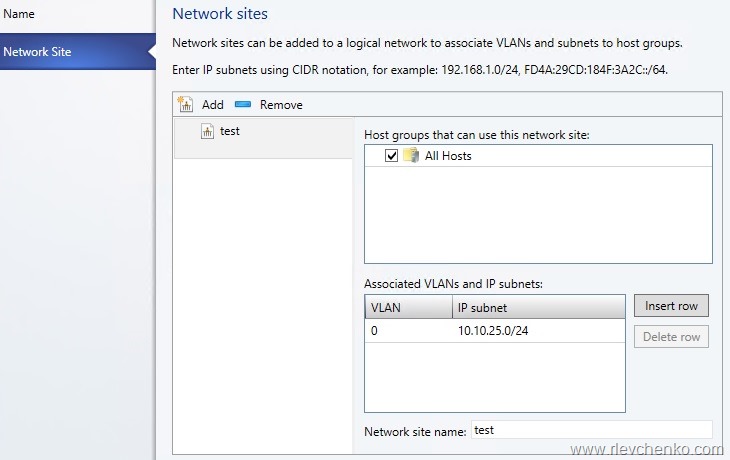
You must have already created logical networks that can be associated with the cloud
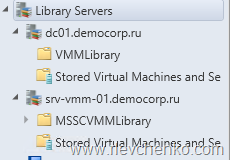
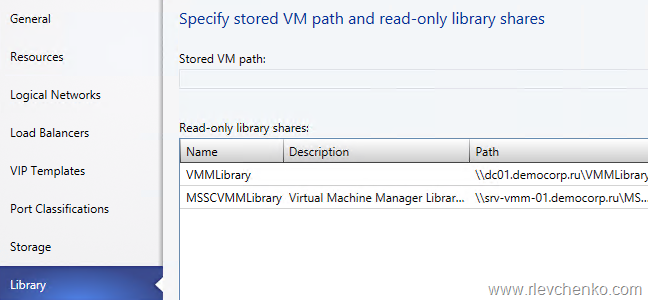
You must have already created a VM library share.
You must assign the right amount of capacity to the cloud. The capacity that you assign to the cloud governs the resources that will be available to the tenants while provisioning virtual machines using VM Clouds.
You must not select any of the available capability profiles (ESX Server, Hyper-V, XenServer) while creating the cloud. If you do so, tenants will not be able to deploy virtual machine roles using the VM Clouds service.
HOW-TO is described below
Service Provider Foundation service account
The Service Provider Foundation service account must be added to the administrator user role in the VMM server
See below
VMM RunAsAccount
To successfully complete all steps in this mini-guide
Create RunAsAccount in VMM and assign Administrator Role
In this section we create BASIC VMM cloud only for demo purposes.You have to carefully plan/design your cloud components.
Add hosts to host group (VMs and Services –> right click on host group name –> add hyper-v hosts and clusters“) or PS:
#In my case, host group called as All Hosts and 1 member hv01

$runAsAccount = Get-SCRunAsAccount -Name "Administrator"
$hostgroup =  Get-SCVMHostGroup -Name "All Hosts"
Add-SCVMHost -ComputerName "hv01.domain.com" -VMHostGroup $hostgroup -Credential $runAsAccount
#Create new logical network
$LogicalNetwork=New-SCLogicalNetwork -Name VM -LogicalNetworkDefinitionIsolation $false -EnableNetworkVirtualization $true -UseGRE $true -IsPVLAN $false
$HostGroup =@()
#Get Host Group
$HostGroup += Get-SCVMHostGroup -Name "All Hosts"
#Add VLAN Subnet ID and IP with netmask
$SubnetVLAN = @()
$SubnetVLAN += New-SCSubnetVLAN -Subnet "10.10.25.0/24" -VLAN 0
#New Definition for logical network VM
New-SCLogicalNetworkDefinition -Name VM -LogicalNetwork $LogicalNetwork -VMHostGroup $HostGroup -SubnetVLAN $SubnetVLAN
Add Library server if it has not deployed yet (Library –> Library Servers –> Add Library Server)
#Get Library Servers
Get-SCLibraryServer
Copy sysprepped vhds to Library (highlight library and click “Import Physical Resource” button) or through PS:
Import-SCLibraryPhysicalResource -SourcePath "path to VHDs" -SharePath "\\libraryFQDN\foldername"
In my demo, I use clean 2012 R2 Std with the latest updates.
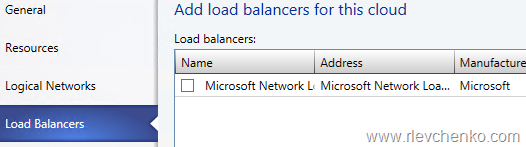
Create new cloud (VMs and Services –> Clouds –> New Cloud). Pictures are clickable (see cloud properties from left to right)
Do not forget:You must not select any of the available capability profiles (ESX Server, Hyper-V, XenServer) while creating the cloud.
If you do so, tenants will not be able to deploy virtual machine roles using the VM Clouds service.
That’s it . Our demo cloud is ready. But it’s not enough.
Now we need to create VM templates.
Create VM Templates
1. Add hardware profiles (Library –> Profiles –> right click –> Create Hardware Profiles). I have one pre-created profile with the following properties:
Create a few profiles for different VM configurations, if it is necessary.
Go to Virtual Templates – right click and “Create VM Template” , use your sysprepped vhd as a source for VM template
Specify Template Name, Generation ID and choose Hardware Profile (it is not required but let’s do it ).
OS configuration page (my future VMs will be based on 2012 R2 Standard, so you have to verify that the right Operating System is specified):
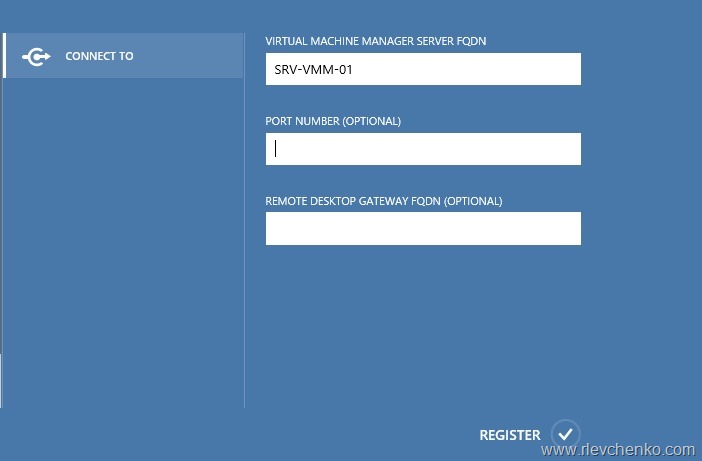
Go to VM Clouds –> Clouds and click on “Use an existing virtual machine cloud…”
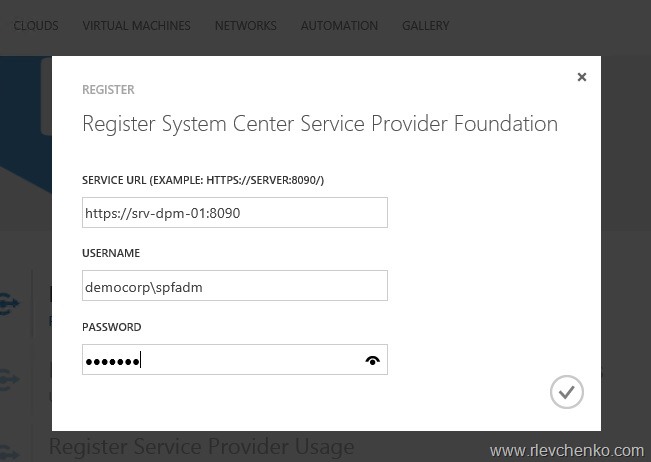
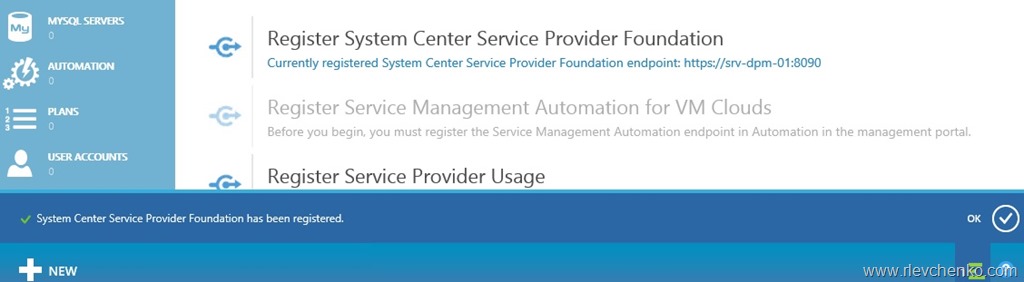
Type VMM server name and Register
OMG! Look at this…it is my cloud
Create WAP Hosting Plan
Go to Plans and click on “Create a new hosting plan”
Devise friendly name for you plan
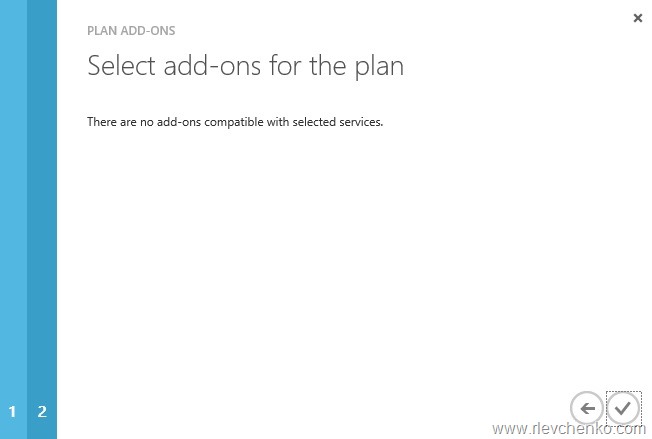
We want to provide VM Clouds
Just click next
5.Our demo plan is created. Verify that status is green.
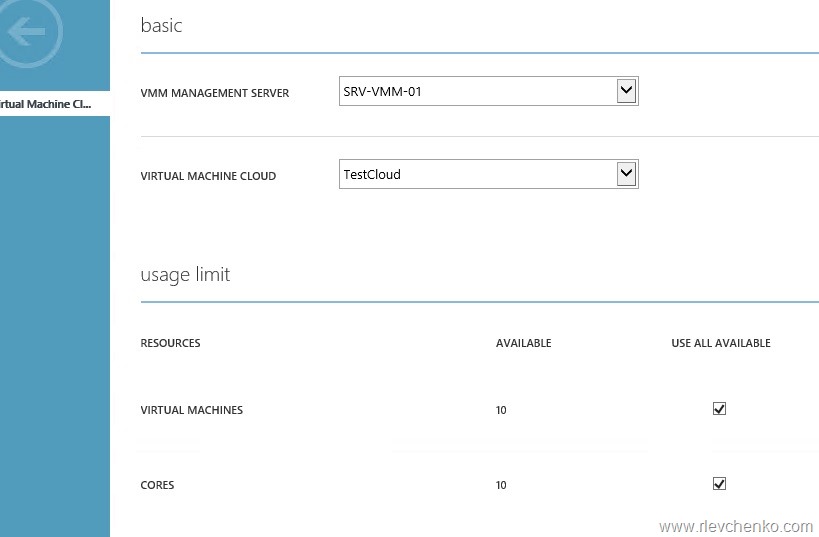
Open newly created plan and go to “virtual machine clouds” service
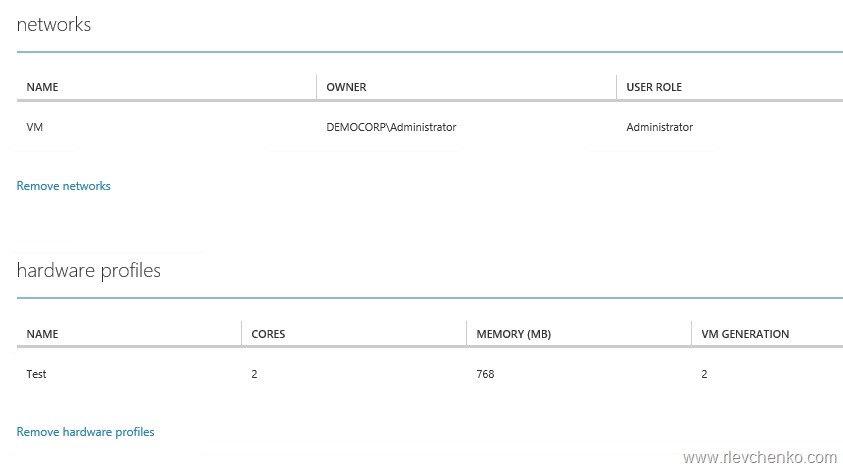
7.Review and change properties (add virtual network, hardware profiles, vm templates) for service
Thanks to gallery items we have options to create workloads (Exchange, Lync,SQL and etc) from gallery (just like in Azure). I will describe it my next posts.
Create new user account for WAP
Finally, we have to create user and map him to our plan with VM clouds service
Go to User Accounts and click on “Create a new user”
Type mail for example, password and choose plan. Click on Create
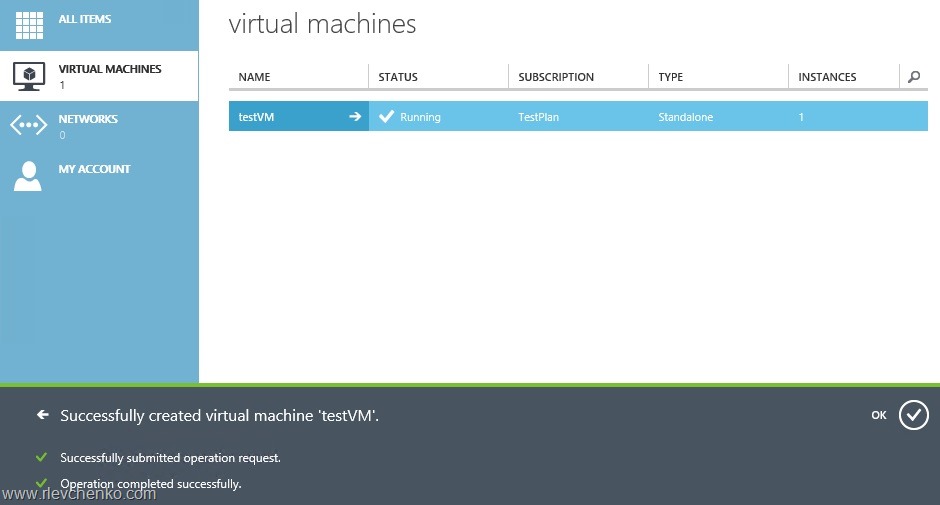
Our demo user (tenant) is created. Now you can access client management portal using this email address and password.











 ).
).










 UseIT | Roman Levchenko