
Windows Server 2016 and System Center 2016 are GA
Windows Server 2016 is available for evaluation and will be on the October price list. Volume licensing customers will be able to download fully licensed software at General Availability in mid-October.
Windows Server 2016 also comes with the built-in support of containers and commercial version of Docker engine without additional charge!
System Center 2016 Evaluation is here . What’s new in System Center 2016?
UPDATE (10/12): WS2016 and SC2016 became available @MSDN and @Azure + UR1 for System Center 2016 and CU for WS2016 + https://support.microsoft.com/en-us/kb/3192366
 + today MS has published pre-configured VHDs to help you quickly evaluate new SC 2016 features
See my previous posts to get what’s new in Windows Server 2016 (Hyper-V, RDS, MultiPoint) and also check the updated technet articles : WS 2016 and SC 2016
TIP: I’d not recommend to use evaluation version in production. Wait while fully licensed media becomes available.
Azure Stack Technical Preview 2
In fact, Azure Stack TP2 announcement was described earlier in this blog post (TP2 rolled out for some “vip” customers). At Ignite MS confirmed GA for Azure Stack TP2.
And now you can try this new preview here + read what’s new in Azure Stack TP2 and review Azure Stack Architecture
More info about this announcement: New ideas, new solutions, new technical preview of Azure Stack
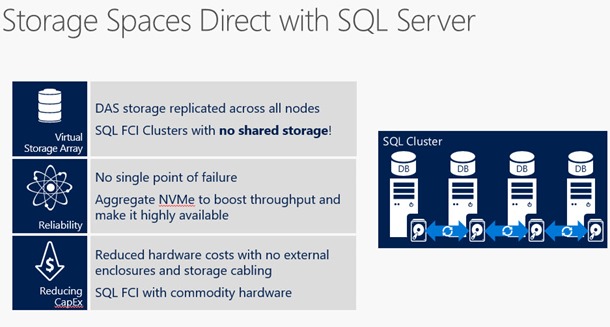
SQL Server supports Storage Spaces Direct
SQL Server 2016 will support deploying databases on Storage Spaces Direct (S2D).To build up S2D you need from 2 to 16 servers with local-attached SATA, SAS, or NVMe drives and dedicated network between hosts (10+GbE with RDMA is recommended)


 UseIT | Roman Levchenko