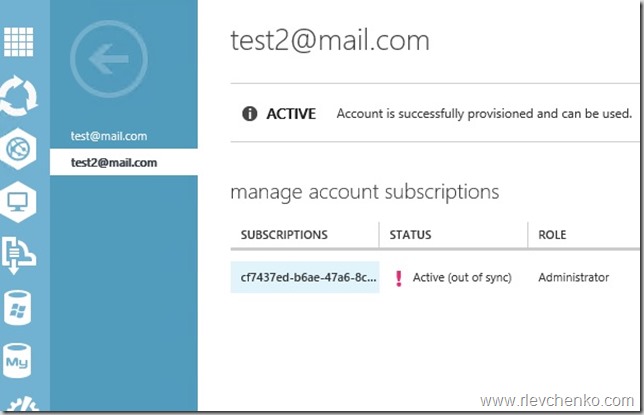
You have installed Service Foundation Provider + SPF account as VMM administrator, Windows Azure Pack and configured VM Clouds inside WAP (SPF Connection, VMM Stamp, Plans, User Account). Then you open the service management portal for tenants (https://wapportal:30081) and notice that Virtual Machine and Networks are empty as shown on the picture:
Account subscription is out of sync:
Software versions: Windows Azure Pack and SPF are up-to-date (rollup 4 for System Center 2012 R2), SQL Server 2012 SP1, VMM 2012 R2 RU4
Resolution:
On the SPF Server open verify that you have IIS Management Console or install one:
Install-WindowsFeature Web-Mgmt-Console
then go to Start->RUN (or Win+R) and type inetmgr -> application pools
note your SPF service accounts and go to step 2
2. Add SPF service account to SPF local groups (SPF_Admin,SPF_Provider,SPF_Usage,SPF_VMM) using lusrmgr.msc or just run the script below (change spfuser with your SPF service account)
$spfuser = 'democorp\spfsvc'
net localgroup spf_admin $spfuser /add
net localgroup spf_provider $spfuser /add
net localgroup spf_vmm $spfuser /add
net localgroup spf_usage $spfuser /add
Open Windows Azure Pack: Management portal for administrators (https://wapportal:30090) , go to user account, highlight user and click on Sync. Status should be active now.
Go back to management portal for tenants (https://wapportal:30081) and verify that you able to create virtual machine or network
Note: iisreset may be required
UPDATE (year 2018): you also need to verify that SPF accounts (Admin and VMM application pool identities) are added to the Administrator role in the VMM ( they are used to manage tenants and VMs in VMM cloud). Otherwise, almost the same error appears in WAP Admin Site logs:
Microsoft.SystemCenter.Foundation.Psws.Spf.SpfOperationManager failed. Cause of the problem: You cannot contact the VMM management server. The credentials provided have insufficient privileges on vmm-mgmt01. (Error ID: 1605)
I don’t know why it’s not documented at the TechNet.
I have 2 WAP “greenfield” configurations for VM Clouds and this error appears on the both.
I’ll try to show you how to install all required components and connect WAP to your VMM Cloud. But now let’s talk about SPF.
Service Provider Foundation (SPF) is provided with System Center 2012 – Orchestrator, a component of System Center 2012 R2 (and System Center 2012 SP1). Service Provider Foundation exposes an extensible OData web service that interacts with Virtual Machine Manager (VMM). This enables service providers and hosters to design and implement multi-tenant self-service portals that integrate IaaS capabilities available on System Center 2012 R2. The following picture shows how SC w/SPF interacts with WAP to provide VM Cloud Services (see TechNet article for more info):
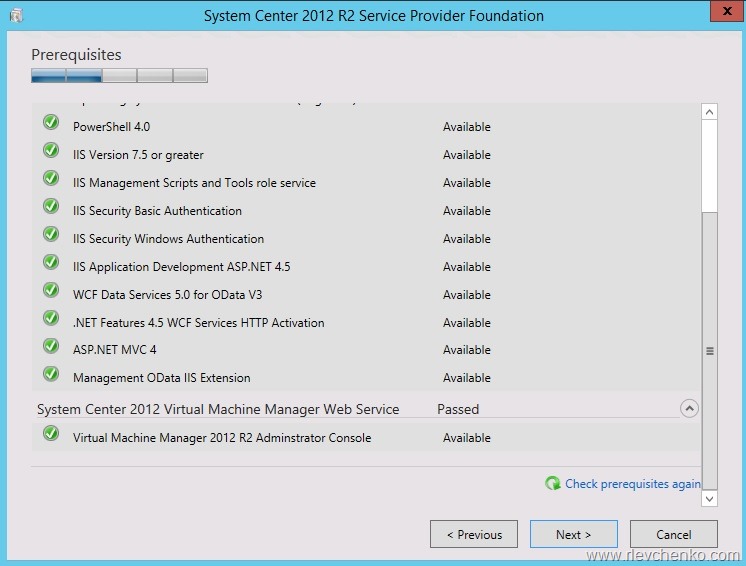
As every installation, SPF requires additional software, features and server roles. Setup wizard checks prerequisites and reports about their status. Unfortunately, there is no “button” to install all of requirements automatically. I’ve wrote a sample script to automate this process (see below). SQL Server is virtual machine srv-sql-01, SPF is the virtual machine srv-spf-01. Don’t try to install SPF 2012 R2 on VMM Server. It’s not supported. However, SPF 2016 can run on the same server as the VMM (although I don’t recommend such co-existence).
Requirements:
OS – Server 2012 R2 ; SPF 2016 – 2012 R2 and later
SQL Server 2012 SP2 and up to SQL Server 2014 SP1
SPF 2016: SQL Server 2012 SP2 and up to SQL Server 2016
Feature – Management OData Internet Information Services (IIS) Extension
Feature – NET Framework 4.5 features, WCF Services, and HTTP Activation.
Web Server (IIS) server. Include the following services:
Certificates: self-signed (wizard creates one automatically) or obtained SSL-certificate (recommended for production)
Here is the script for installation all requirements (don’t forget to install VMM console manually). Works for SPF 2016 as well.
#IIS + Process activation model
Install-WindowsFeature Web-Asp-Net45,Web-Scripting-Tools,Web-Basic-Auth,Web-Windows-Auth,NET-WCF-Services45,Web-ISAPI-Ext,Web-ISAPI-Filter,Web-Scripting-Tools,WAS-Process-Model,WAS-Config-APIs,ManagementOdata
#Download and install WcfDataServices and AspNetMVC4
New-Item C:\SPFRequirements -ItemType Directory
Invoke-WebRequest https://download.microsoft.com/download/8/F/9/8F93DBBD-896B-4760-AC81-646F61363A6D/WcfDataServices.exe -OutFile C:\SPFRequirements\wcfdatasvc.exe
Invoke-WebRequest https://download.microsoft.com/download/2/F/6/2F63CCD8-9288-4CC8-B58C-81D109F8F5A3/AspNetMVC4Setup.exe -OutFile C:\SPFRequirements\aspnetmvc.exe
Set-Location C:\SPFRequirements
.\aspnetmvc.exe /quiet
Wait-Process aspnetmvc
.\wcfdatasvc.exe /quiet
Wait-Process wcfdatasvc
Write-Host "All prerequisites are installed. Insert VMM DVD and install VMM Console manually. Then your environment will be ready for SPF installation"
Mount ISO with Orchestrator and run SetupOrchestrator.exe and click on “Service Provider Foundation”
Click Install
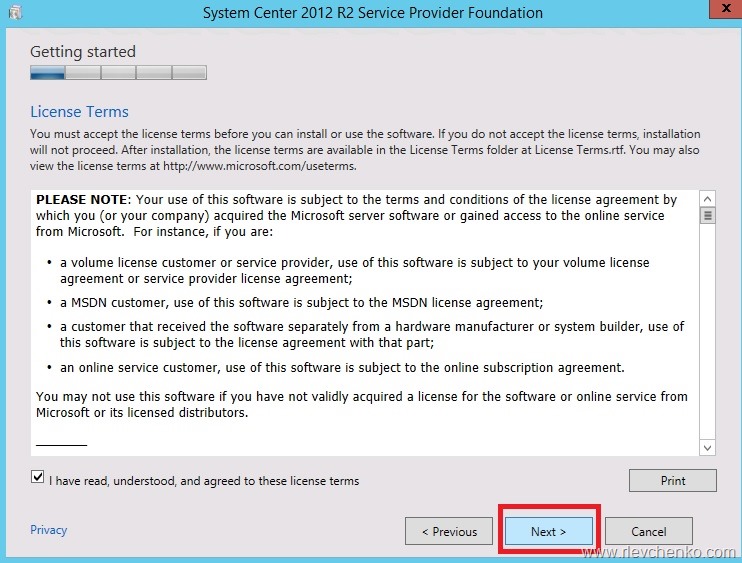
Accept license terms and click Next
We’ve already installed all prerequisites, so just click Next
Define SQL Server Name , Port Number and click Next. If you unable to reach SQL Server you have to open firewall ports (https://support.microsoft.com/kb/968872) or check SQL TCP properties
Choose certificate type (I’ll use self-signed in my DEMO) and click Next
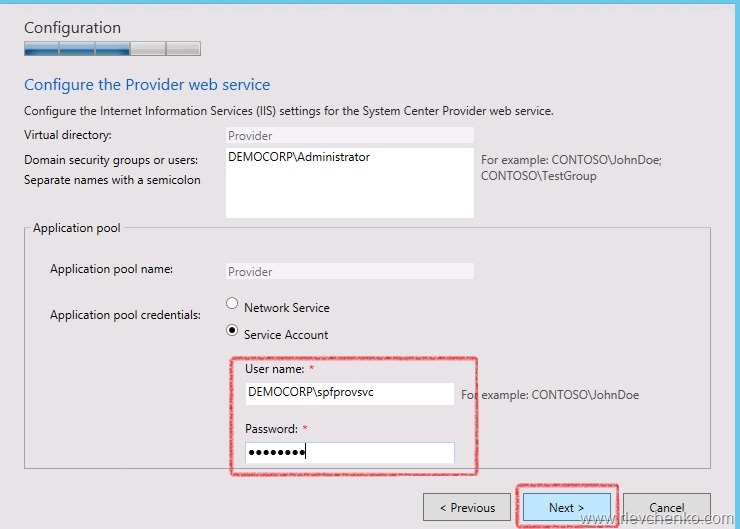
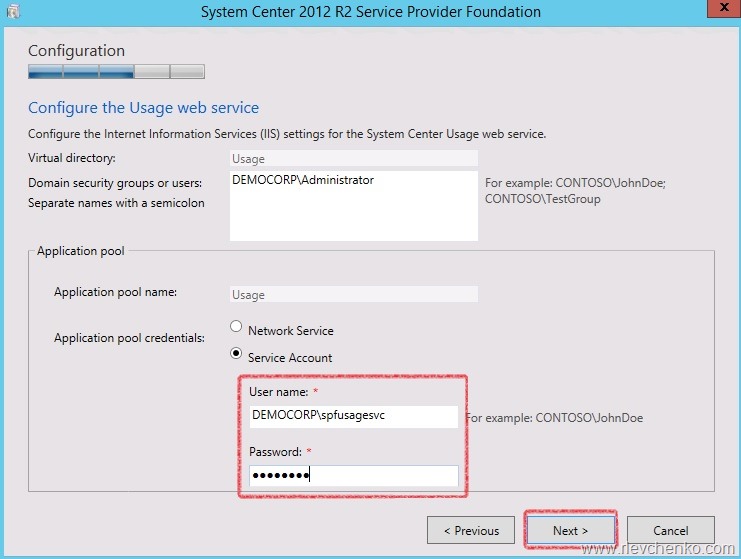
Define application pool credentials and domain groups or users who will have an access to SPF services and click Next. It’s recommended to create new domain accounts for every SPF services instead of using Network Service account







 UseIT | Roman Levchenko