SPLA and VDI

Microsoft VDI and VDA FAQ 3.0:

Currently, there is no SPLA model for Windows VDA. Hence, customers
who subscribe to desktops from a third-party hoster will need to
pay Microsoft for a Windows VDA license for each device accessing
Windows client virtual machines in the datacenter. Additionally, hosters
need to ensure they isolate the hardware and other resources for each
company. Any hardware running an instance of Microsoft software (OS
or application) must be dedicated to a single customer. For example, a
SAN device that is not running any Microsoft software may be shared
by more than one customer; whereas, a server or SAN device that runs
Microsoft software may only be used by one customer.

Services Provider Use Rights (April, 2015):

Desktops delivered as a service are supported under SPLA using Windows Server and Remote Desktop Services (RDS). The Windows Desktop Operating System cannot be used to provide a hosted client, hosted graphical user interface or desktop as a service.

Providing Microsoft Desktop as a Service licensing guide:

Offering a Desktop as a Service (DaaS) solution requires giving your customer an appropriately licensed solution for the entire software solution stack. The software solution stack depends on the software delivery model selected:

  • DaaS through the Microsoft Services Provider License Agreement (SPLA) via the Microsoft Windows Server Operating System or
  • DaaS through Dedicated Outsourcing using your customer’s Microsoft Volume Licensing agreement.

No option is available in the SPLA to provide a hosted virtual desktop using the Windows Desktop Operating System; however this is possible to do through Dedicated Outsourcing.

dedicated outsourcing vdi microsoft

DaaS through SPLA does not require dedicated hardware.  You can provide DaaS through a SPLA on servers accessed by more than one customer.

No words.No logic. Just one question. Why?

Step-by-step CA migration

Hi all!

Today we are discussing CA migration from 2003 to 2008 R2.

It is also applicable to other versions of Windows Server.

Note: target and source names are not equal. CA name is the same during migration

Step 1. CA Databases and configuration back up

Log in to Windows Server 2003 , open Certification Authority and click on Back up CA..

ca_transfer_2003_to_2008_1

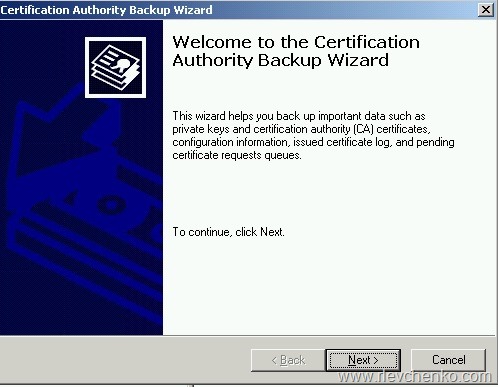
Review the wizard’s start page and click Next

ca_transfer_2003_to_2008_2

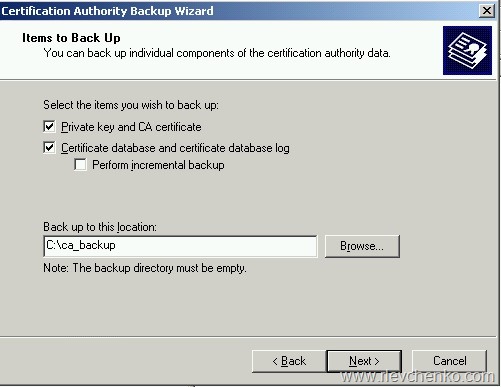
Click on check boxes Private key and CA certificate + Certificate database and certificate database log ,define location for backup files and click Next

ca_transfer_2003_to_2008_3

Type and remember password for the private key and click Next

ca_transfer_2003_to_2008_4

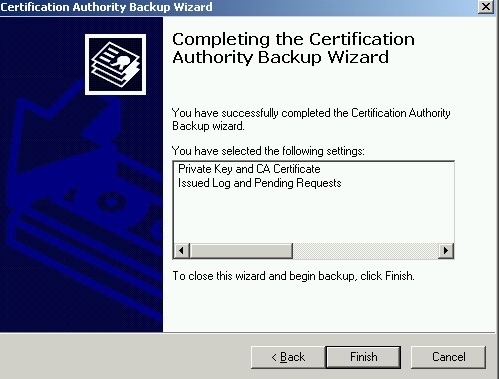
Review the results. click Finish

ca_transfer_2003_to_2008_5

Start – Run (win+r) – Regedit

Go to the path

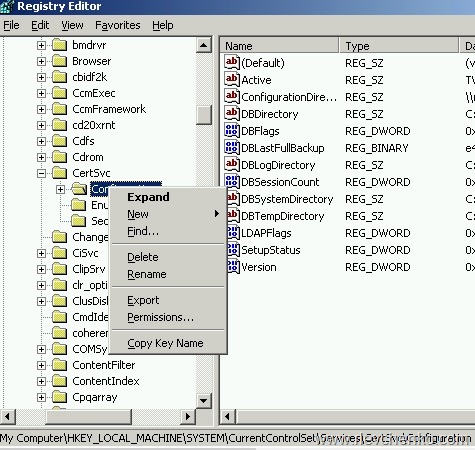
HKEY_LOCAL_MACHINE\SYSTEM\CurrentControlSet\Services\CertSvc\

Right click on Configuration and  Export

ca_transfer_2003_to_2008_6

Define location for reg file and click Save

ca_transfer_2003_to_2008_7

Step 1 is complete. Now we have to delete CA services on the source server

Step 2. Removing CA services on the source server

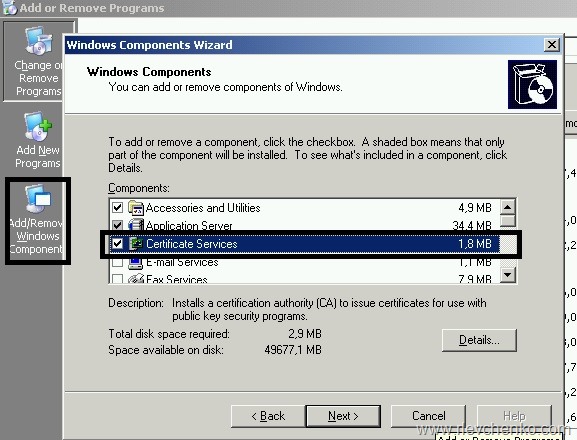
Go to Add or Remove Programs –> Add/Remove Windows Components , remove tick in “Certificate Services”, click Next

ca_transfer_2003_to_2008_8

Wait..

ca_transfer_2003_to_2008_9

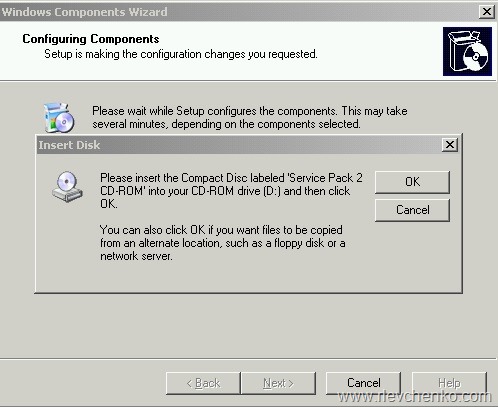
Sometime we need to insert the CD with 2003/SP2 for successful configuration

ca_transfer_2003_to_2008_10

We successfully completely removing CA services, click Finish

ca_transfer_2003_to_2008_12

Step 3. CA services installation on the target server

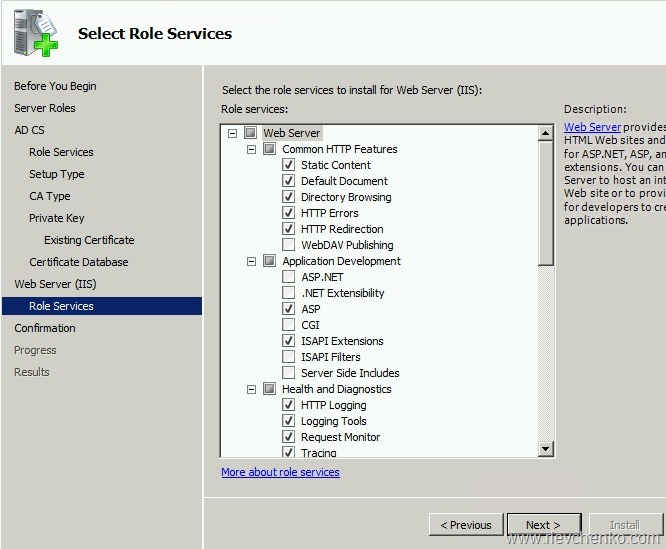
Server Manager –> Add or Remove Roles > Active Directory Certificate Services

ca_transfer_2003_to_2008_13

ca_transfer_2003_to_2008_14

Certification Authority + Certification Authority Web Enrollment 

ca_transfer_2003_to_2008_15

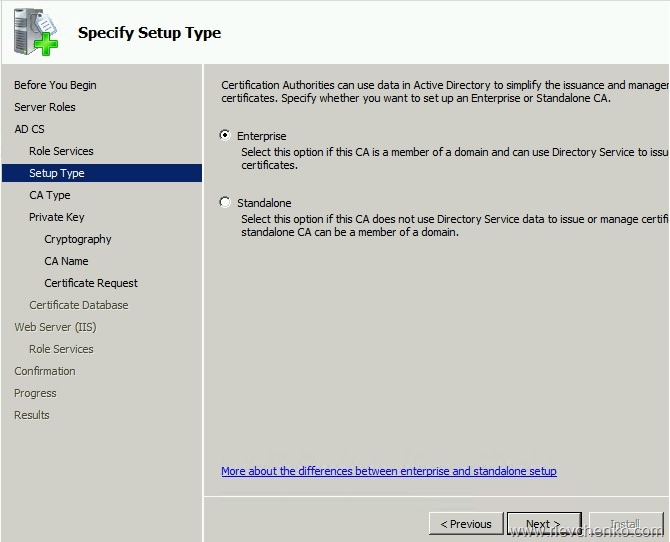
We want to set up  an Enterprise CA

ca_transfer_2003_to_2008_16

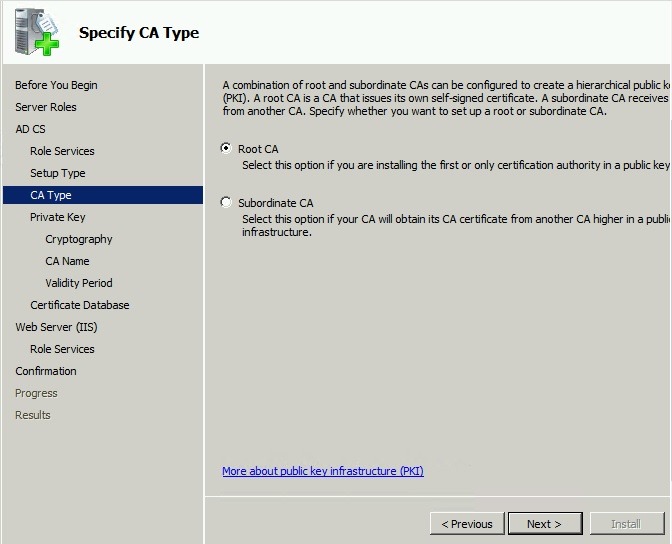
We are installing the Root CA

ca_transfer_2003_to_2008_17

We already have the Private Key (шаг 1),so Use Existing Private Key

ca_transfer_2003_to_2008_18

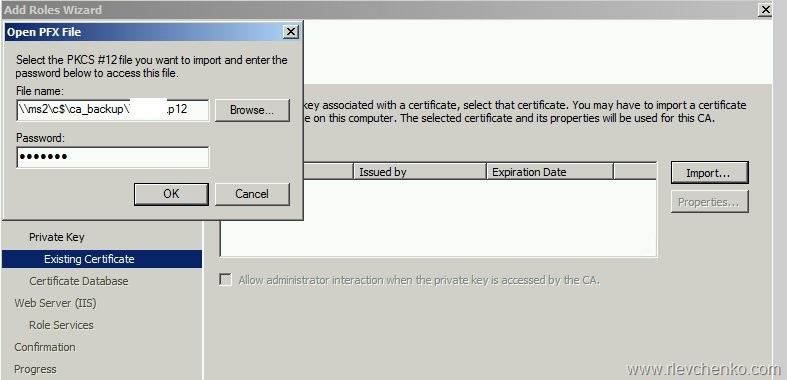
Locate your PFX-file (step 1) and import one

ca_transfer_2003_to_2008_19

ca_transfer_2003_to_2008_20

Just click Next

ca_transfer_2003_to_2008_21

Leave it by default

ca_transfer_2003_to_2008_22

Review the summary and click Install

ca_transfer_2003_to_2008_23

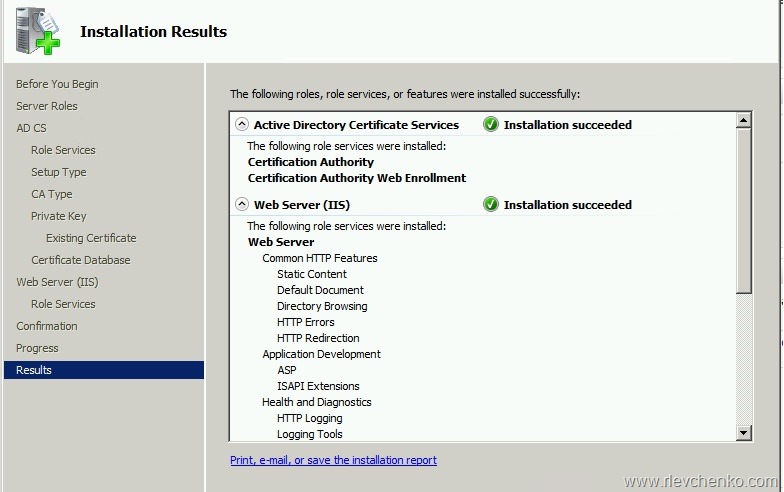
Verify that roles were installed successfully

ca_transfer_2003_to_2008_24

Шаг 4. Restore CA on the target server

Start – run (win+r) – certsrv.msc

ca_transfer_2003_to_2008_25

Right click on the  CA name –> All Tasks –> Restore CA

ca_transfer_2003_to_2008_26

Stop CA services = click OK

ca_transfer_2003_to_2008_27

Click Next

ca_transfer_2003_to_2008_28

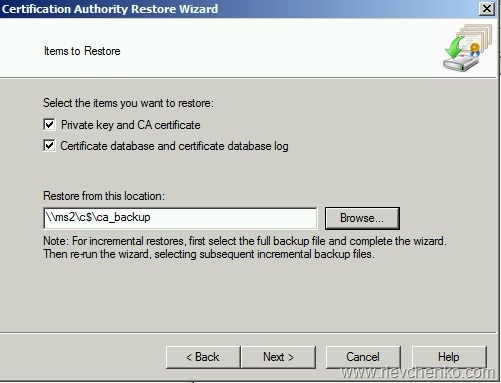
Insert path to files from step 1, click on checkboxes Private key.. и Certificate database

ca_transfer_2003_to_2008_29

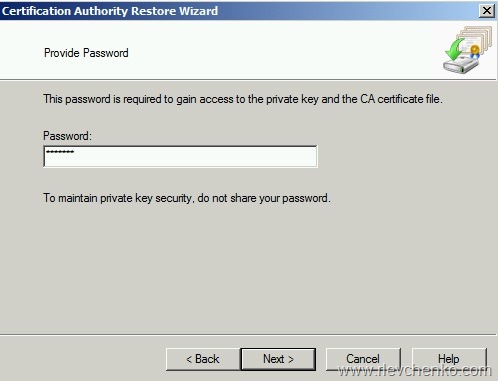
Type your password from step 1

ca_transfer_2003_to_2008_30

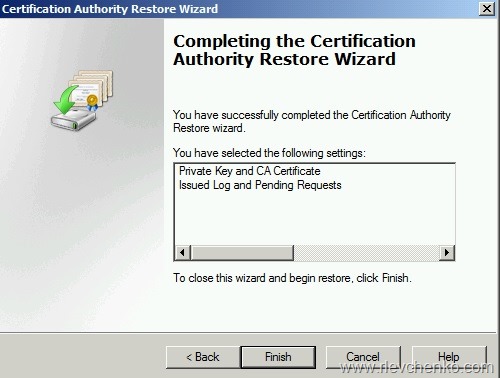
Review the summary and click Finish

ca_transfer_2003_to_2008_31

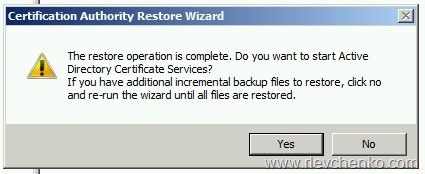
We are not going to start CA services yet. Click “NO”

ca_transfer_2003_to_2008_32

Run ref file and add CA configuration

ca_transfer_2003_to_2008_33

Optionally

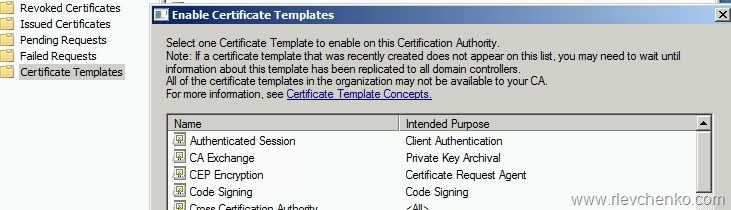
Reissue Certificate Templates

certsrv.mmc –> certificate templates- right click –> new –> certificate template to issue

choose your template and click OK

ca_transfer_2003_to_2008_34

Verify CA migration:

https://technet.microsoft.com/en-us/library/ee126164(v=ws.10).aspx

Additional links: