Virtual Machine Manager is the core component of a medium- or large-sized virtualization platform. If you have a lot of hosts and virtual instances , private/hybrid clouds or network virtualization, having highly available VMM is strongly recommended. In this post we will discuss how satisfy all requirements for VMM High availability and set up 2 VMM HA instances.
Hardware and settings behind this post
- 1 Hyper-V host (TP5, CU2)
- 1 DC (domainlab.com, guest)
- 2 VMM (VMM01, VMM 02 , guest)
- 1 SQL Server (SQL01, guest)
- internal vSwitches
- all guests and hosts are up-to-date (Windows Update, no exotic KBs)
- user for setup: domain/ent administrator
Prepare your environment for VMM HA
1) VMM creates database to keep it’s configuration data, so remote SQL Server instance with Standard edition at least is required.
TIP: to remove single point of failure I’d recommend to set up SQL Server HA. AlwaysOn FCI and AG are supported.
2) open 445 and 1433 ports on one or more SQL Servers (if your SQL is in HA)
For Windows Firewall (please note I use Domain Profile here):
New-NetFirewallRule -Name "SQL Server 445" -DisplayName "SQL Server 445" -Profile Domain -Direction Inbound -LocalPort 445 -Protocol TCP -Action Allow
New-NetFirewallRule -Name "SQL Server 1433" -DisplayName "SQL Server 1433" -Profile Domain -Direction Inbound -LocalPort 1433 -Protocol TCP -Action Allow
3) create service account for VMM Service and add one to the local Administrator group on each VMM host
#Use Powershell or dsa.msc
New-ADUser -Name "VMM Service Account" -GivenName "VMM SVC" -SamAccountName vmmsvc -UserPrincipalName vmmsvc@demolab.com -AccountPassword (Read-Host -AsSecureString "Type Password For Service Account")
#Use PS/CMD or lusrmgr.msc
ICM -ComputerName vmmservername {net localgroup administrators /add Demolab\VMMSVC}
4) as almost any clustered role in Windows Server, VMM HA is built on the top of the the well-known Failover-Clustering feature and some requirements are similar.
#Install Failover-Clustering feature on every VMM host
Install-WindowsFeature Failover-Clustering -IncludeManagementTools
TIP: it’s also recommended to add and prepare separate network for cluster heartbeats
5) Create a new cluster (cluadmins.msc or PS)
New-Cluster -Name VMMCL -Node VMM01, VMM02 -StaticAdress 192.168.10.40 -NoStorage -AdministrativeAccessPoint ActiveDirectoryAndDns -IgnoreNetwork 10.10.23.0/24

6) Check that newly created cluster operates without any errors (cluadmins.msc/cluster core resources and cluster events)
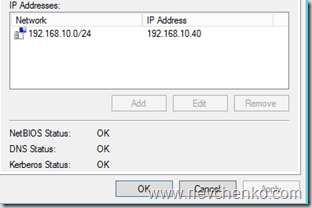
7) VMM encrypts some data in the VMM database by using the Data Protection Application Programming Interface (DPAPI). For example, VMM encrypts Run As account credentials and passwords in guest operating system profiles. VMM also encrypts product key information in virtual hard disk properties for virtual machine role scenarios and configuration.
If you move VMM to another station, VMM will not retain the encrypted data. To be able to operate in HA mode, VMM requires Distributed Key Management which stores encryption data in AD DS.
To get it work you need to define the new container in ADDS (adsiedit.msc or PS)
TIP: The account with which you are installing VMM must have Full Control permissions to the VMMDKM container (use adsiedit.msc and security tab)
TIP: you need to create the container in the same domain as the user account with which you are installing VMM
#Get domain's distinguished name (example, "DC=contoso, DC=com")
$DN=(Get-AdDomain).DistinguishedName

#VMMDK container will be created at the root of domain context
New-ADObject -Name "VMMDKM" -Type Container -Path ($DN)
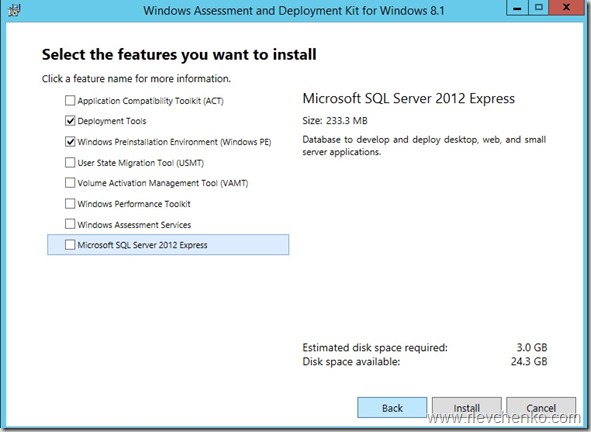
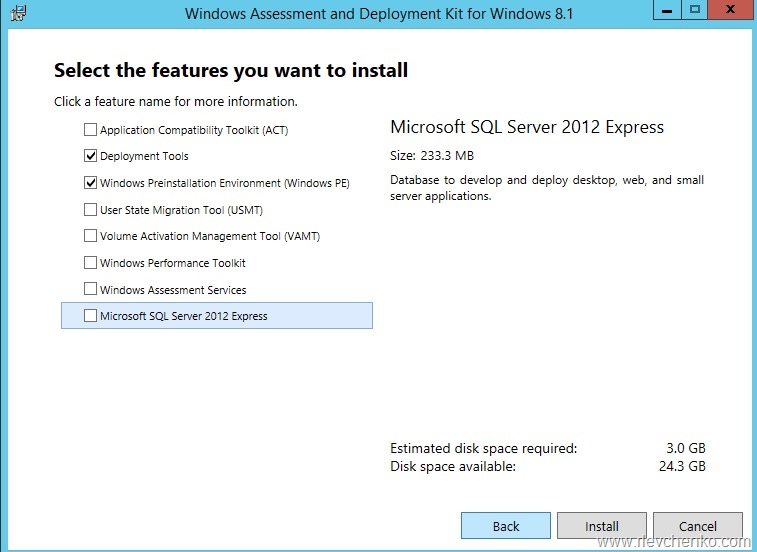
8) Download and install Windows ADK 8.1 with only Deployment Tools and Windows PE features on each VMM host
TIP: you can download ADK files to a file share and use shared path to install ADK on the next VMM hosts. Timesaver.
VMM Installation
After you created a new cluster and added all of your VMM hosts to one, you are ready to run setup.exe from VMM media.
The steps are the same as for standalone installation. But there are some differences :
- you cannot define library servers at the library configuration page. you must add them after setup from VMM console (HA File Server is recommended)
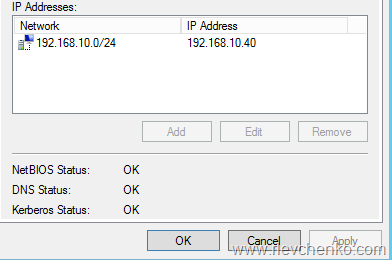
- wizard automatically determinates (checks cluster membership) that you are going to create VMM HA (1st picture)
- you need to define settings for VMM cluster role (name and IP address)
- no option to store encryption keys on the local machine. DKM is selected by default.
Then you need to define
- name, organization, product key
- Windows Update settings (on/off)
- SQL Connections settins (Name, Credentials and etc.)
- Service account (vmmsvc , in my case) and password
- DKM path (CN=VMMDKM, DC=demolab, DC=com)
- cluster name (VMMHA) and it’s ip address
Repeat steps on each VMM host.
Download the latest UR (UR 10 for today) and install it then.
This slideshow requires JavaScript.
Open cluadmins.msc , go to Roles and verify that clustered role with the name VMMHA was created.

TIP: owner mode shows you current active VMM server for income connections. VMM HA uses active-passive model.
You can retrieve the active node from VMM console as well. Use FQDN of newly created cluster and default 8100 port as for connection string and check Fabric –Infrastructure – VMM Server section
TIP: it’s recommended to install VMM console on the remote station which is not a member of VMM HA cluster

Additional considerations
- You can only have one implementation of a highly available VMM management server on a given failover cluster.
- You can have VMM management servers installed on as many as sixteen nodes on a failover cluster, but there can only be one node active at any time.
- You cannot perform a planned failover (for example, to install a security update or to do maintenance on a node of the cluster) by using the VMM console. To perform a planned failover, use Failover Cluster Manager.
- During a planned failover, ensure that there are no tasks actively running on the VMM management server. Any running tasks will fail during a failover. Any failed jobs will not start automatically after a failover.
- Any connections to a highly available VMM management server from the VMM console or the VMM Self-Service Portal (unavailable for new VMM versions (2012 SP1 and later)) will be lost during a failover. The VMM console will be able to reconnect automatically to the highly available VMM management server after a failover.
Thanks for reading.
Have a nice datacenter management!
P.S. don’t know how to upgrade old VMM even if it is installed on 2008 R2? Check my post.





 UseIT | Roman Levchenko