Intro
I have a lot of tasks related with the collecting of information about the virtual infrastructure. One of the steps of any audit is to get and analyze configuration compliance best practices. This stage always includes a manual check and BPA Analyzer for Hyper-V. BPA Analyzer became available in 2008 R2 (as a separate KB http://support.microsoft.com/kb/977238/en-us). But starting with Server 2012/2012 R2, BPA Hyper-V is already included in the RTM- version and can be run from the ” box “, using the Server Manager or module BestPractices. BPA Analyzer scans the Hyper-V role , including host configuration and virtual machines , and displays warnings about infractions of the best practices within the console and in the Server Manager. Obviously, If we have a large number of Hyper-V hosts, we need to automate this process. And,yes, automation=powershelling  . Script is very simple. Tested on 2008 R2/2012.
TIP: This is not the last revision of this script. I will update post and script if I add some fixies or features. Please, follow me to receive any updates and feel free to write comments.
TIP: To succesfully run the script you shoud verify that ExecutionPolicy is RemoteSigned (Set-ExecutionPolicy -RemoteSigned) and PsRemoting is enabled on remote servers (Enable-PsRemoting).Usually, it’s not necessary.
TIP: download link at the end of the post
Script performs..
1. Creates a folder C: \ BPA and C: \ BPA \ reports for storing reports and source data. If the folder Reports already exists , the process of creation is skipped.
2. Prompts you to enter a name NETBIOS-Hyper-V servers and stores the entered names in the file hvhosts.csv with the correct format
3. For each NETBIOS-name checks for installed Hyper-V role and starts scanning the BPA
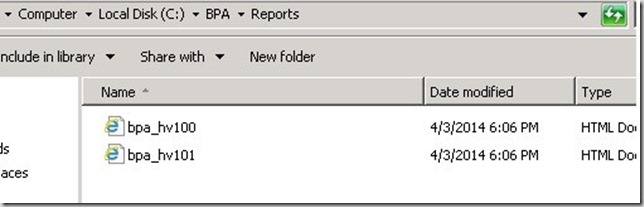
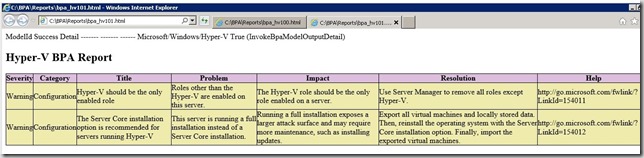
4. Converts results (only warnings or errors) to the HTML-file (bpa/reports/bpa_servername.html) and automatically opens each report in browser
#Check the availability of the necessary files and folders
$test=Test-Path c:\BPA\Reports
If ($test -eq $false)
{ #Creating folders and files if we don't have them
New-Item c:\BPA -ItemType Directory
New-Item c:\BPA\Reports -ItemType directory
New-Item C:\BPA\hvhosts.csv -ItemType file
Add-Content -Path C:\BPA\hvhosts.csv -Value "HyperVhost"
Write-Host "Folders/Files were created. Now you MUST define Hyper-V Server Names" -ForegroundColor Red -BackgroundColor white
}
Else {Write-Host "There is nothing to create. Jump To The Next Step" -ForegroundColor Red -BackgroundColor white}
#HVhosts will keep our netbios names
$csvfile="C:\BPA\hvhosts.csv"
#Fill hvhosts from console(!). type server names separated by commas
[string]$name=Read-Host "Enter Hyper-V NETBIOS Name (separated by commas)"
$name.Split(",")|% {$_.trim()}|Add-Content C:\BPA\hvhosts.csv
#Import file HVHOSTS with Hyper-V host names
Import-csv $csvfile|foreach {
#Variable $hv keeps our netbios names
$hv=$_.HyperVhost;
$grole=Get-WindowsFeature Hyper-V
#Check if servers has really Hyper-V role installed
ICM -ScriptBlock {
If ($grole.Installed -eq $False) {write-host "You don't have hyper-v on $hv" -ForegroundColor Red -BackgroundColor Blue}
else {write-host "Server $hv has hyper-v installed feauture. Everything is OK. Doing a BPA Scan. HTML will open automatically" -ForegroundColor red -BackgroundColor White}}
#Show BPA collecting status
Write-host "Collecting BPA Information on $hv" -foreground Yellow;
#Run BPA tasks on servers
ICM -ScriptBlock {
 #Import all necessary modules (for PS 3.0 it's now neccessary, but PS 2.0 requires this step)
 Import-Module ServerManager
 Import-Module BestPractices
 #Start BPA Scan
 Invoke-BPAModel -BestPracticesModelID Microsoft/Windows/Hyper-V
 #HTML Style
 $head = "<style>"
 $head = $head + "BODY{background-color:white;}"
 $head = $head + "TABLE{border-width: 1px;border-style: solid;border-color: black;border-collapse: collapse;}"
 $head = $head + "TH{border-width: 1px;padding: 0px;border-style: solid;border-color: black;background-color:thistle}"
 $head = $head + "TD{border-width: 1px;padding: 0px;border-style: solid;border-color: black;background-color:palegoldenrod}"
 $head = $head + "</style>"
 #Take BPA Results(only warning and errors. if you have non-English OS you SHOULD change "error" and "warning" )
 Get-BpaResult -BestPracticesModelId Microsoft/Windows/Hyper-V |
 Where-Object {$_.Severity -eq "Error" -or $_.Severity -eq “Warning” }|
 #Convert BPA report to HTML
 ConvertTo-Html -Property Severity,Category,Title,Problem,Impact,Resolution,Help -body "<H2>Hyper-V BPA Report</H2>" -head $head
} |
 #Create HTML-report named as bpa_nameofserver.html
 Out-File "C:\BPA\reports\bpa_$hv.html"
#Open HTML
 Invoke-Expression "C:\BPA\reports\bpa_$hv.html"
}

#Created by Roman Levchenko. 2014.www.rlevchenko.com
#Please do not remove copyrights
Process

Folder “Reports”
Report
0.000000
0.000000



 UseIT | Roman Levchenko