Fix: Adding special permissions to the cluster computer object failed

Scenario

You have two or more 2012 R2 up-to-date nodes and want to create new failover cluster. Logged user is Domain Admin.

You install the required features:

Install-WindowsFeature FailoverClustering -IncludeManagementTools

Run validation tests and it’s green:

Test-Cluster -Node node1,node2

Run cluster creating:

New-Cluster -Name TestCluster -Node node1,node2 -StaticAddress 192.168.1.100 -NoStorage

and you receive:

Adding special permissions to the computer object failed. Trying to add ‘Full-Access’ permissions for security principal to computer object CN=,OU=,DC=,DC= failed. Verify that the user running create cluster has permissions to update the computer object in Active Directory Domain Services. The parameter is incorrect.

  • Steps for prestaging required objects don’t work too.
  • Changing user rights or adding new user for cluster creating  –>  no luck
  • No time synchronization issues between nodes and DCs
  • Networks are configured properly
  • Validation tests are all “green”
  • Firewall is disabled

Solution

1. Create new computer object for cluster name (Go to ADUC –> your OU –> new –> computer)

cluster creating error 1

3. Turn on view with advanced features

cluster creating error 3

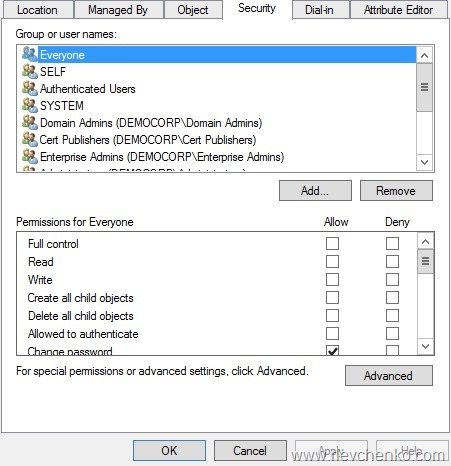
4. Right click on CNO (computer object for new cluster) and go to Security tab –> select Advanced
cluster creating error 4

5. Click on “Disable Inheritance” (for 2012/2012 R2) or clear “Allow inheritable permissions from parent to propagate to this object and all the child objects” (2008/2008R2) and “Remove all inherited permissions from this object”

cluster creating error 5

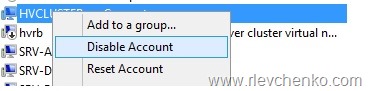
6. Right click on the new cluster name and disable it (prestaged computer object from step 1)
cluster creating error 2

7. Go back to the failover cluster wizard and try to create cluster again

TOTD:Switch between core and GUI in WS 2016 TP2

Hi, everyone!

Here is another tip of the day.

As we described at the previously post (what’s new in Hyper-V  Windows Server 2016),there are only two install options (except for Nano Server) in Windows Server 2016 TP2. However, you have a third option – switch between core/minshell and GUI.

As shown on the picture (I’m sorry for the picture quality), GUI features are removed by default (TP2 without installed updates, core) and if you try to install them you get error (the source files could not be downloaded). Workaround is to provide alternative source (offline windows image) for required packages.

Mount ISO/Disk with Server 2016 TP2 and run:

Install-WindowsFeature Server-GUI-Mgmt-Infra, Server-GUI-Shell -source wim:<disk drive>:\sources\install.wim:<image index>
Restart-Computer -Force

#help
Server-GUI-Mgmt-Infra includes Server Manager, control panel, MMCs and etc.
Server-GUI-Shell: Windows Explorer, Internet Explorer,Desktop and etc.

gui_tp2

There is a known issue in TP2:

If you attempt to switch from Server with a GUI mode to Server Core mode in one step (that is, if you try to uninstall the Server-GUI-Mgmt-Infra and Server-GUI-Shell features at the same time), the uninstallation will fail. This will occur regardless of the uninstallation method, including using Server Manager, Dism.exe, or Windows PowerShell.

To avoid this, uninstall Server-GUI-Shell first, and then uninstall Server-GUI-Mgmt-Infra .

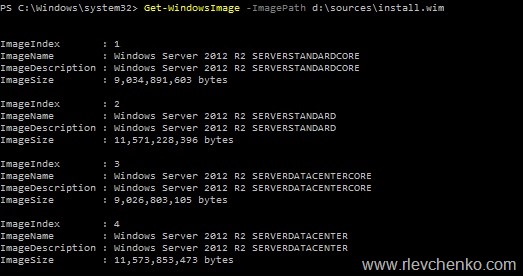
To get index of windows edition:

Get-WindowsImage -ImagePath D:\sources\install.wim

#help
1,3 are core versions
2,4 non-core versions, contain all packages. should be used as image index to switch from core to GUI

gui_tp2_2

If you have an updated TP2 and trying to switch from core to GUI using offline WIM (without updates) and receive error “ the source files could not be downloaded” you have to update offline windows image with installed updates and try again then.

#Get list of installed updates, download and save them manually
Get-HotFix

#Create new folder
New-Item C:\WIM -ItemType Directory

#Mount WIM to newly created folder
Mount-WindowsImage -Path C:\WIM -ImagePath D:\sources\install.wim -index 2

#Add update to WIM
Add-WindowsPackage -PackagePath "path to update package" -Path "C:\WIM"

#Apply changes to WIM
Dismount-WindowsImage -Path C:\WIM -Save

#try to switch

Vote and post your thoughts at this user voice thread:

http://windowsserver.uservoice.com/forums/295047-general-feedback/suggestions/7996191-change-the-installation-option-for-windows-server