TOTD: DC is not advertising as a time server

#Hello, guys! 
#Here is a new tip of the day (TOTD). 
#Today we discuss how to fix the most common warning which you may receive on DCs

#You run dcdiag on your DC and receives warning "..is not advertising as a time server"

dcdiag /q
Warning: nameofdc is not advertising as a time server.
......................... nameofdc failed test Advertising

#The main time source in domain is DC with PDC role . Run the following command to query FSMO owners:

netdom query fsmo

#On your PDC you have to set up w32tm with external (generally) or internal time source. for example, pool.ntp.org

w32tm /config /manualpeerlist:pool.ntp.org /syncfromflags:manual /reliable:yes /update

#On your additional DCs run
w32tm /config /syncfromflags:domhier /update

#Restart w32time service on each DC
net stop w32time
net start w32time

#Update w32tm config
w32tm /config /update

#Resync time
w32tm /resync

#Re-run dcdiag
dcdiag /q /s:yourDCname

Time Synchronization in an AD DS Hierarchy
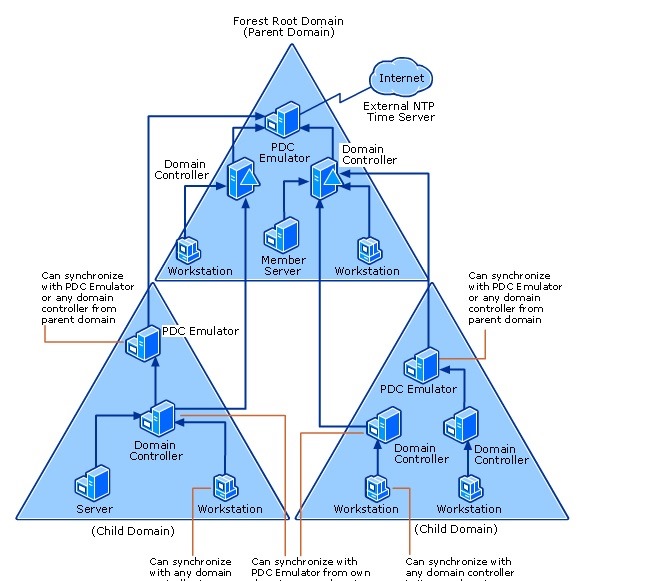
pdc

Links:

https://technet.microsoft.com/en-us/library/cc773013(WS.10).aspx

How to manually merge snapshots in Hyper-V

There are lot of articles similar with that. Ok. This is a only just my recent experience

I have VM with only one AVHD (snapshot/checkpoint) . If your VM has a lot of AVHD files , you need to locate the latest.

For example, you have 3 snapshots for VM (VHD <> AVHD1<> AVHD2 <> AVHD3) .

VHD is the parent disk for AVHD1, AVHD1 is the parent for AVHD2 and AVHD2 is the parent for AVHD3.

Merging process: AVHD3 to AVHD2, AVHD2 to AVHD1 , AVHD1 to VHD

In my case I have only AVHD1 and parent VHD (on the picture below)

snapshots_merge_1

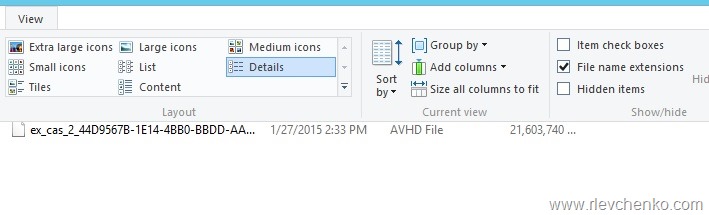
View (for 2012/2012R2, folder properties 2008/2008R2) –> activate “File Name Extensions” and change AVHD extension  to VHD

snapshots_merge_2

snapshots_merge_3

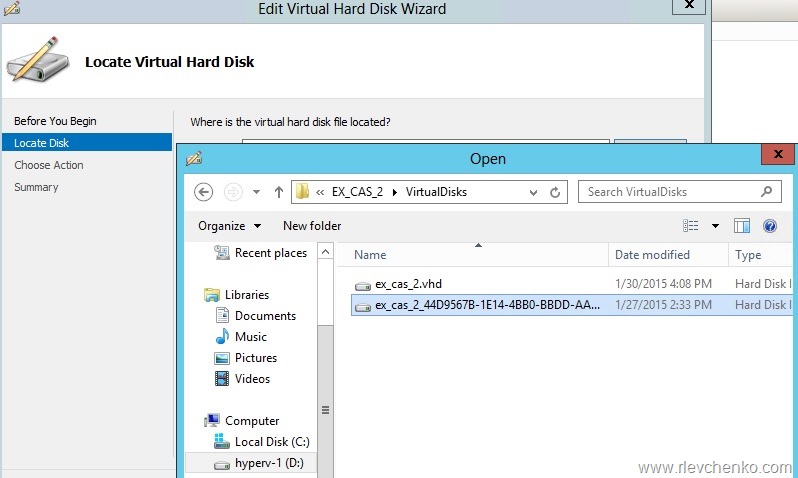
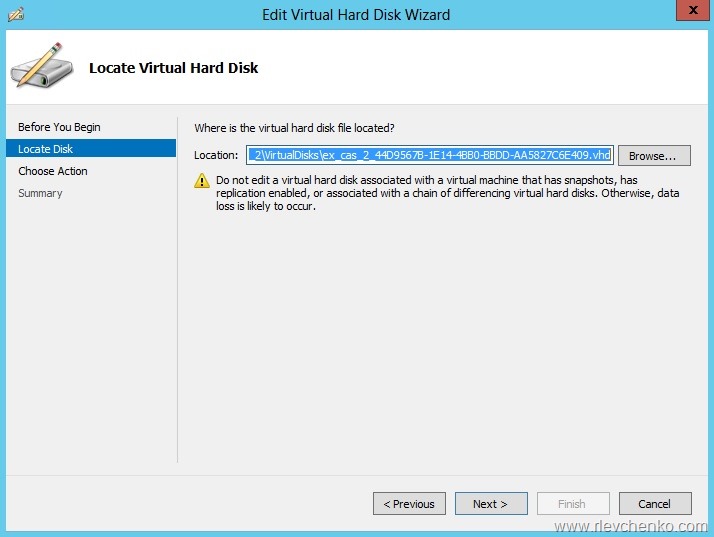
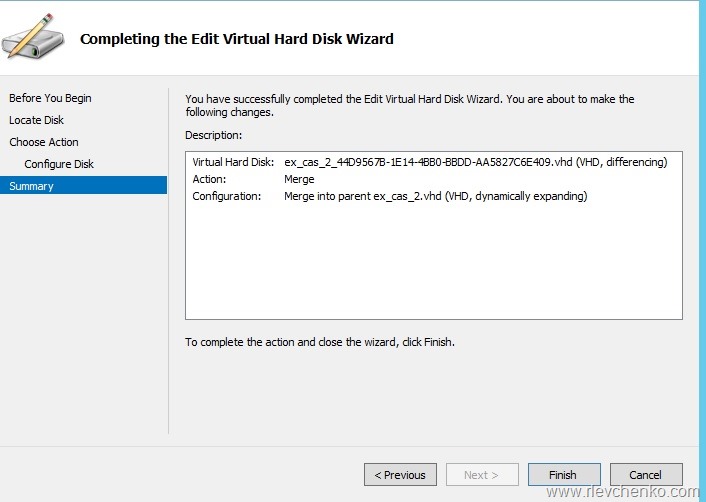
Go to Hyper-V Manager , click on Edit Disk on the right pane , Browse and locate your checkpoint (.vhd)

snapshots_merge_4

snapshots_merge_5

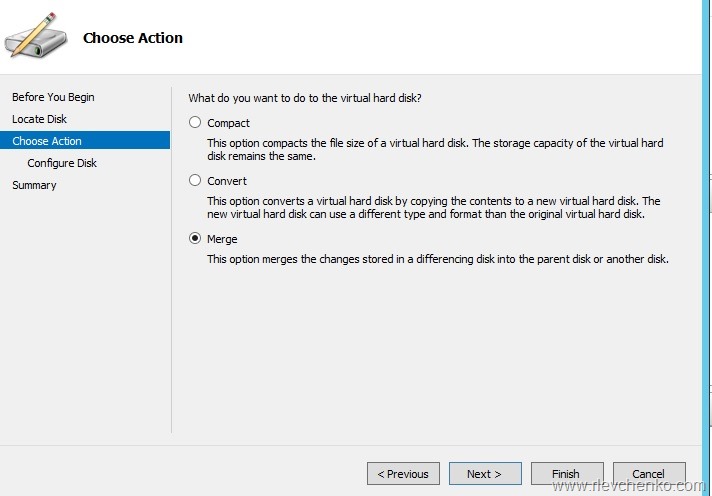
Click on the Next and choose Merge

snapshots_merge_6

Merge the changes to the parent virtual disk

snapshots_merge_7

Click “Finish”

snapshots_merge_8

snapshots_merge_9

Result:

snapshots_merge_10

Merging AVHD to VHD is completed.Now you can use this merged VHD disk during VM creation.