Starting in Windows Technical Preview, Hyper-V integration components will be delivered directly to virtual machines using Windows Update.
Integration components (also called integration services) are the set of synthetic drivers which allow a virtual machine to communicate with the host operating system. They control services ranging from time sync to guest file copy. We’ve been talking to customers about integration component installation and update over the past year to discover that they are a huge pain point during the upgrade process.
You have installed Service Foundation Provider + SPF account as VMM administrator, Windows Azure Pack and configured VM Clouds inside WAP (SPF Connection, VMM Stamp, Plans, User Account). Then you open the service management portal for tenants (https://wapportal:30081) and notice that Virtual Machine and Networks are empty as shown on the picture:
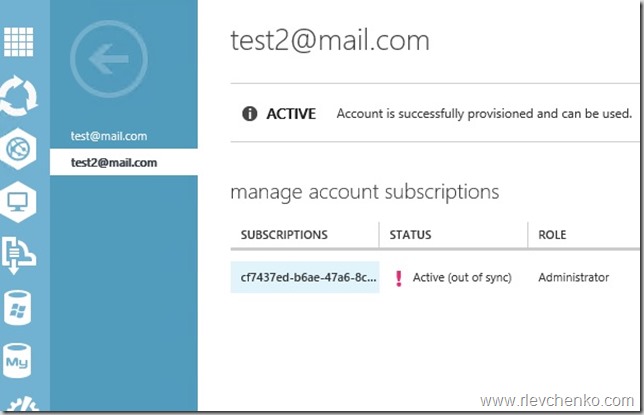
Account subscription is out of sync:
Software versions: Windows Azure Pack and SPF are up-to-date (rollup 4 for System Center 2012 R2), SQL Server 2012 SP1, VMM 2012 R2 RU4
Resolution:
On the SPF Server open verify that you have IIS Management Console or install one:
Install-WindowsFeature Web-Mgmt-Console
then go to Start->RUN (or Win+R) and type inetmgr -> application pools
note your SPF service accounts and go to step 2
2. Add SPF service account to SPF local groups (SPF_Admin,SPF_Provider,SPF_Usage,SPF_VMM) using lusrmgr.msc or just run the script below (change spfuser with your SPF service account)
$spfuser = 'democorp\spfsvc'
net localgroup spf_admin $spfuser /add
net localgroup spf_provider $spfuser /add
net localgroup spf_vmm $spfuser /add
net localgroup spf_usage $spfuser /add
Open Windows Azure Pack: Management portal for administrators (https://wapportal:30090) , go to user account, highlight user and click on Sync. Status should be active now.
Go back to management portal for tenants (https://wapportal:30081) and verify that you able to create virtual machine or network
Note: iisreset may be required
UPDATE (year 2018): you also need to verify that SPF accounts (Admin and VMM application pool identities) are added to the Administrator role in the VMM ( they are used to manage tenants and VMs in VMM cloud). Otherwise, almost the same error appears in WAP Admin Site logs:
Microsoft.SystemCenter.Foundation.Psws.Spf.SpfOperationManager failed. Cause of the problem: You cannot contact the VMM management server. The credentials provided have insufficient privileges on vmm-mgmt01. (Error ID: 1605)
I don’t know why it’s not documented at the TechNet.
I have 2 WAP “greenfield” configurations for VM Clouds and this error appears on the both.




 UseIT | Roman Levchenko