
Finally, I’d like to review what’s new in failover clustering in Windows Server 2016. Actually, I wrote this article a couple of months ago for Russian official Microsoft blog so if you are Russian you can go to this resource to read it in your native language.
Also, I described some of the new features before RTM-version (when only TPs were available) and almost all of them can be applied to Windows Server 2016 as well. It means there are no significant changes in RTM for them. I’ll provide a short description of such features and links to my previous posts with a detailed information.
And yes, of course, completely new functionality (Load Balancing, for instance) will also be described here
* I have all of this in PDF format. Ping me in the comments/email and I’ll send to you the copy PDF has been shared
Cluster OS Rolling upgrade
Cluster migration is usually a headache for administrators. It could be the reason of huge downtime (because we need to evict some nodes from old cluster, build the new one based on these nodes or new hardware and migrate roles from source cluster. So, in the case of overcommitment we won’t have enough resources to run migrated VMs). It’s critical for CSPs and other customers that have implemented SLA policy.
Windows Server 2016 fixes this by adding possibility to place Windows Server 2012 R2 and Windows Server 2016 nodes in the same cluster during upgrade/migration phase.
The new feature named as Cluster Rolling Upgrade (CRU) significantly simplifies overall process and allows us to successively upgrade existed nodes without destroying cluster. It helps to reduce downtime and any required costs (hardware, staff time and etc.)
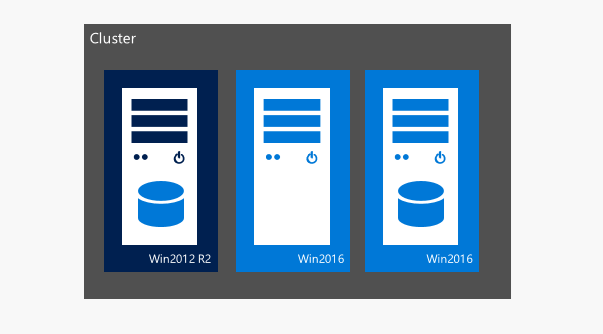
The full list of CRU benefits is listed below:
- Hyper-V virtual machine and Scale-out File Server workloads can be upgraded ONLY from Windows Server 2012 R2 to Windows Server 2016 without any downtime. Other cluster workloads will be unavailable during the time it takes to failover (for example, SQL Server with AlwaysOn FCI ~ 5 minutes of downtime)
- It does not require any additional hardware (for example, you evicted 1 node of 4. The rest 3 nodes are online and they must have resources for workloads live migrated from evicted node. In this case zero-downtime is predicted)
- The cluster does not need to be stopped or restarted.
- In-Place OS upgrade is supported BUT Clean OS install is highly recommended. Use In-Place upgrading carefully and always check logs/services before adding node back to cluster.
- A new cluster is not required. In addition, existing cluster objects stored in Active Directory are used.
- The upgrade process is reversible until the customer crosses the “point-of-no-return”, when all cluster nodes are running Windows Server Technical Preview, and when the Update-ClusterFunctionalLevel PowerShell cmdlet is run.
- The cluster can support patching and maintenance operations while running in the mixed-OS mode.
- CRU is supported by VMM 2016 and can be automated through PowerShell/WMI
To get more details read my previous post that shows CRU in action (it’s been written for Technical Preview but can still be used with RTM)
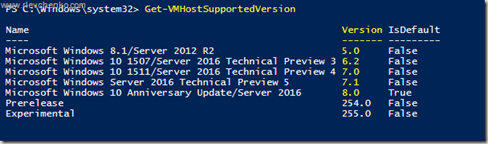
Hint: get list of supported VM’s version by host (Get-VMHostSupportedVersion).
Cloud Witness
Failover cluster in Windows Server 2012 R2 can be deployed with an external disk or file share witness which must be available for each cluster nodes and it’s needed as a source of extra vote. As you may know, witness is highly recommended (I’d say it’s required!) for Windows Server 2012 R2 cluster regardless of a number nodes in it (dynamic quorum automatically decides when to use witness).
In Windows Server 2016 a new witness type has been introduced – Cloud Witness. Yes, it’s Azure-based and it’s specially created for DR-scenarios, Workgroup/Multi-Domain cluster (will be described later), guest clusters and clusters without shared storage between nodes.
Cloud Witness uses Azure Storage resources (Azure Blog Storage through HTTPS protocol. HTTPS port should be opened on all cluster nodes) for read/write operations. Same storage account can be used for different clusters because Azure creates a blob-file generated for each cluster with unique IDs. These blob-files are kept in msft-cloud-witness container and require just KBs of storage. So, costs are minimal and Cloud Witness can be simply used as a third site (“arbitration’) in stretched clusters and DR solutions.
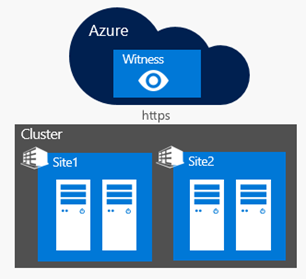
Cloud Witness scenarios:
- Multi-Site clusters
- Clusters without shared storage (Exchange DAG, SQL Always-On and etc.)
- Guests clusters running on Azure and On-Premises
- Storage Cluster with or without shared storage (SOFS)
- WorkGroup and Multi-Domain Clusters (new in WS2016. It’ll be described later)
Continue reading “What is new in Failover Clustering in Windows Server 2016”


 UseIT | Roman Levchenko