
Demo servers:
SCOM: scom01.demo.local
SQL+Reporting: sql01.demo.local
AD: ad01.demo.local
Accounts for SCOM:
demo\scom.aa – Action service account
demo\scom.dw – Data Writer
demo\scom.dr – Data Reader
demo\scom.das – Data Action Service Account
Prepare SQL Server:
SCOM requires at least SQL Server 2008 R2 (for SCOM 2012) and 2008 R2 SP1 (SCOM 2012 SP1)
Using a different version of SQL Server for different Operations Manager features is not supported
SQL Server collation settings for all databases must be one of the following: SQL_Latin1_General_CP1_CI_AS, French_CI_AS, Cyrillic_General_CI_AS, Chinese_PRC_CI_AS, Japanese_CI_AS, Traditional_Spanish_CI_AS, or Latin1_General_CI_AS. No other collation settings are supported
For SCOM Operational Database you must have:
Supported version of SQL Server
Installed Database Services with SQL Server Full Text Search feature!
For SCOM Reporting:
Supported version of SQL Server
Installed and configured Reporting Services
Important: if you planning SCOM Reporting component you MUST install one locally on SQL Server with Reporting services. Don’t try to install Reporting remotely to SQL instance. (honestly, I tried :)). You will receive: NO SSRS Instances on SCOM MS Server.
I won’t show you how to install SQL Server. Just don’t forget to meet all requirements above.
Prepare SCOM server:
1) Install supported server OS (in my case, server 2012 Std)
2) Join to domain
Add-Computer -DomainName demo.local -Credential demo\demoadm
Restart-Computer
3) Update the server
4) Install required software (D is drive, where Server 2012 has mounted)
Install-WindowsFeature RSAT-AD-Powershell,Web-Asp-Net,Web-Asp-Net45,Net-Framework-Core,Web-Static-Content,Web-Default-Doc,Web-Dir-Browsing,Web-Http-Errors,Web-Http-Logging,Web-Request-Monitor,Web-Filtering,Web-Stat-Compression,Web-Metabase,Web-Windows-Auth,Web-CGI,Web-ISAPI-Ext,Web-ISAPI-Filter,Net-WCF-HTTP-Activation45 -Source D:\Sources\SxS
Set-Location C:\Windows\Microsoft.NET\Framework64\v4.0.30319
.\aspnet_regiis.exe -r
4) Open TCP ports 5723,5724,80,443 in firewall. Ports 5723,5724 are for Management Server , 80 and 443 are for Web Console.
New-NetFirewallRule -Name "SCOM MS" -DisplayName "SCOM MS" -Profile Domain -Direction Inbound -LocalPort 5723,5724 -Protocol TCP -Action Allow
New-NetFirewallRule -Name "SCOM WS" -DisplayName "SCOM WS" -Profile Domain -Direction Inbound -LocalPort 80,433 -Protocol TCP -Action Allow
5) Create required services accounts.
Basically, SCOM uses the management server action account (scom.aa) and System Center Data Access service account (scom.das). You can use one account for both services, but Microsoft recommends to use two separate accounts for the best security. If you install Reporting SCOM component , you are prompted for two additional accounts, the Data Warehouse Write account (scom.dww) and the Data Reader account (scom.dr). Scom.aa and scom.das must be added to the local Administrators group on Management server and Operational Database. Scom.dww and scom.dr must have logon rights on SQL server where operational and reporting databases located.
$adcn=(Get-ADDomain).DistinguishedName
$ouname=read-host "Type OU where you want to create users:"
New-AdUser SCOMDataAccessAccount -SamAccountName scom.aa -AccountPassword (ConvertTo-SecureString -AsPlainText "Password1" -Force) -PasswordNeverExpires $true -Enabled $true -Path "CN=$ouname,$adcn"
New-AdUser SCOMDataAccess -SamAccountName scom.das -AccountPassword (ConvertTo-SecureString -AsPlainText "Password1" -Force) -PasswordNeverExpires $true -Enabled $true -Path "CN=$ouname,$adcn"
New-AdUser SCOMDataReader -SamAccountName scom.dr -AccountPassword (ConvertTo-SecureString -AsPlainText "Password1" -Force) -PasswordNeverExpires $true -Enabled $true -Path "CN=$ouname,$adcn"
New-AdUser SCOMDataWriteWareHouse -SamAccountName scom.dww -AccountPassword (ConvertTo-SecureString -AsPlainText "Password1" -Force) -PasswordNeverExpires $true -Enabled $true -Path "CN=$ouname,$adcn"
New-AdGroup -Name SCOMLocalAdm -GroupScope Global -GroupCategory Security
Add-AdGroupMember SCOMLocalAdm scom.aa,scom.das
6) I believe you already installed SQL Server instance and we are ready to add some changes for supporting communication between SCOM and SQL. The main goal my article to show you how we can use powershell and why it’s so cool. The first answer is we can do evertything without additional connections (RDP or something) to management servers. Just create Powershell remote session and go!go!go! 🙂 .
7) Create firewall rules on SQL Server. Standart ports pack for SQL Server : 1433- database service, 1434 – sql browser, 4020 – sql broker. Additionally, we have to enable on WMI-WINMGMT-In-TCP rule. Then we add SCOMLocaladm group to Administrators group on SQL Server and create SQL logins for SCOM Data reader and SCOM Data Write accounts
$sqlsrv = read-host "Type FQDN of SQL Server:"
$cred = Read-Host "Define credential for connection fo SQL Server(Domain\user):"
$psrem = New-PSSession -ComputerName $sqlsrv -Credential $cred
Invoke-Command -Session $psrem -ScriptBlock{
Insall-WindowsFeature RSAT-AD-Powershell
$sqld=(Get-AdDomain).Name
Set-NetFirewallRule -Name WMI-WINMGMT-In-TCP -Enabled True
New-NetFirewallRule -Name "SQL Broker" -DisplayName "SQL Broker" -Profile Domain -Direction Inbound -LocalPort 4020 -Protocol TCP -Action Allow
New-NetFirewallRule -Name "SQL DB" -DisplayName "SQL Database" -Profile Domain -Direction Inbound -LocalPort 1433 -Protocol TCP -Action Allow
New-NetFirewallRule -Name "SQL Browser" -DisplayName "SQL Browser" -Profile Domain -Direction Inbound -LocalPort 1434 -Protocol TCP -Action Allow
net localgroup administrators $dname\SCOMLocalAdm /add
Invoke-SQLCmd -Query "CREATE LOGIN [$sqld\scom.dr] FROM WINDOWS"
Invoke-SQLCmd -Query "CREATE LOGIN [$sqld\scom.dww] FROM WINDOWS" }
Install SCOM MS,Web and Operations Consoles
Open wizard, next, next,type something, next,next,wait and blablabla . So boring…
Let’s use unattended installation!
setup.exe /silent /install
/components:OMServer,OMConsole,OMWebConsole
/ManagementGroupName: DemoManagementGroup
/SqlServerInstance: sql01\MSSQLSERVER
/DatabaseName: OperationalDatabase
/DWSqlServerInstance: sql01\MSSQLSERVER
/DWDatabaseName: SCOMDWDATABASE
/UseLocalSystemActionAccount /UseLocalSystemDASAccount
/DatareaderUser: demo\scom.dr
/DatareaderPassword: Password1
/DataWriterUser: demo\scom.dww
/DataWriterPassword: Password1
/AcceptEndUserLicenseAgreement
/WebSiteName: DefaultWebSite
/WebConsoleAuthorizationMode: Mixed
/SendODRReports: 0
/EnableErrorReporting: Never
/SendCEIPReports: 0
/UseMicrosoftUpdate: 1
Install SCOM Reporting
Before installation check your SSRS configuration (see my pictures)


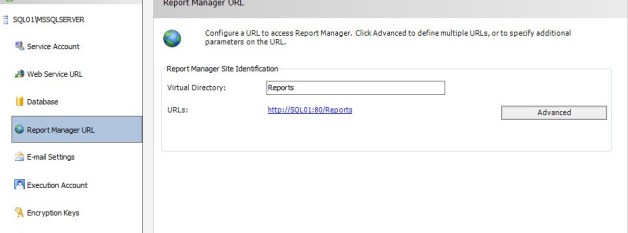

To install Reporting use the following command:
setup.exe /silent /install /components:OMReporting

/ManagementServer: SCOM01.DEMO.LOCAL

/SRSInstance: SQL01\MSSQLSERVER

/DataReaderUser: demo\scom.dr

/DataReaderPassword: Password1

/SendODRReports:0

/UseMicrosoftUpdate: 1
After installation
If you use a domain account for scom data access service, you must register an SPN for each management server. Use the SETSPN command line tool.
setspn -a demo\scom01 demo\scom.das
setspn -a demo\scom01.demo.local demo\scom.das
P.S. Now you have got everything to create your first Powershell script. Go ahead! 🙂






 UseIT | Roman Levchenko