Start by creating a new partition (LVM is being used below). If you have a cluster, repeat the steps on each node.
# Create partition
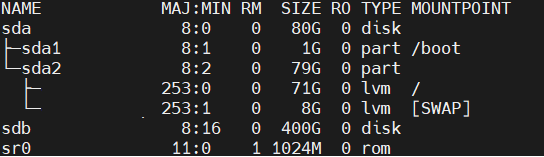
lsblk # get dev name
fdisk /dev/sdb # use 8e type, other settings are default
lsblk # check
pvcreate /dev/sdb1 # create a volume
pvdisplay # check volumes
vgcreate clickhouse /dev/sdb1 # create a volume group
lvcreate --name data -l 100%FREE clickhouse # create a logical volume
mkfs.ext4 /dev/clickhouse/data # make ext4 fs
Add a new mount point to the /etc/fstab:
# edit fstab, following best practices - use noatime option
# /etc/fstab, use UUID or /var/lib/clickhouse defaults,noatime
# if UUID is used, run blkid /dev/mapper/clickhouse-data

# Example
/dev/mapper/clickhouse-data  /var/lib/clickhouse ext4  defaults,noatime     0       0
If you have a cluster, identify the shard/replica and check the replication queue.
SELECT database,table,source_replica FROM system.replication_queue;

SELECT cluster,host_name,shard_num,shard_weight,replica_num FROM system.clusters ORDER BY shard_num;
On each replica in a shard, one by one:
# Stop ch server
sudo systemctl stop clickhouse-server

# prepare dirs
mv /var/lib/clickhouse /var/lib/clickhouse-tmp
mkdir /var/lib/clickhouse
chown clickhouse:clickhouse /var/lib/clickhouse

# activate the mount defined in the fstab
mount /var/lib/clickhouse

# copy data
cp -R /var/lib/clickhouse-tmp/* /var/lib/clickhouse/
chown -R clickhouse:clickhouse /var/lib/clickhouse

# get ch server back
sudo systemctl start clickhouse-server
Check the databases, tables, and ClickHouse server state (error logs; usually they are located here: /var/log/clickhouse-server/clickhouse-server.err.log).
If everything works fine, delete the temporary directory rm -rf /var/lib/clickhouse-tmp and check disk space with df -h
In today’s data-driven world, managing and protecting your data is paramount. We have already learned how to backup PostgreSQL here. And now it’s our turn to discuss ClickHouse, an open-source columnar database management system, that is renowned for it’s high performance and scalability.
I will explain a Dockerized cron job designed to facilitate the backup of ClickHouse databases, whether they are located on a single host or within a clustered environment with shards and replicas.
The agent is based on the Alpine Docker image and uses the clickhouse-backup tool, which has the ability to work as a REST API service. Logrotate has been added to manage the log files produced by the backup agent.
The agent does the following:
creates scheduled FULL or DIFF backups (POST to /backup/create)
checks “create backup” action status before every upload (GET to /backup/status)
uploads each backup to a remote storage (POST to /backup/upload/)
checks and waits until upload operation finishes (GET to /backup/actions)
manages log file with API responses and errors
generates customized output to standard container logs
if a backup is not uploaded to remote storage, it’s marked as failed and will not be used as the last backup for subsequent DIFF backups
Important: according to the clickhouse-backup official FAQ, “incremental backups calculate increment only during executing upload or create_remote command or similar REST API request”. In other words, DIFF and FULL local backups are actually the same (clickhouse-backup list local). Clickhouse-backup creates local backups first before uploading them to remote storage.
If you list remote backups using the command (clickhouse-backup list remote), you will notice the distinction between these two backup types. This is why the agent only issues a warning when you attempt to create a DIFF backup for the first time without having any prior FULL backups
Default settings:
DIFF backups: every hour from Monday through Friday and Sunday, plus every hour from 0 through 20 on Saturday
FULL backups: every Saturday at 8.30 PM
Rotate and compess logs weekly, rotated 14 times before being removed
Clickhouse-backup API basic authentication is enabled (rlAPIuser)
Clickhouse server authentication is enabled (rlbackup)
./agent/clickhouse-backup.sh – script to define backup and upload steps
./agent/cronfile – cron job backup and logrotate tasks
./github/workflows/docker-image.yml – simple GitHub action to build agent’s docker image on every Dockerfile change
Possible use cases
As a resource for learning Docker, Docker Compose, Bash, cron, and logrotate.
As a source of scripts, cron job tasks, or Docker files. Just grab them and you are all set.
As a sample of pairing ClickHouse-Backup and ClickHouse Server.
How to use
check out logrotate and cron settings in the agent folder
verify the Dockerfile in the agent folder (if docker is being used)
adjust clickhouse backup settings if necessary (./clickhouse/clickhouse-backup-config.yml) Change credentials, clickhouse host and remote storage at least
clickhouse-backup API container or standalone service shoud have access to /var/clickhouse/ folders to create backup successfully. In case of a container, see docker-compose.yml. If your clickhouse-backup API is a Linux service, run the service on the first replica for each shard, and then update cronfile accordingly.
copy cron and script files to a remote host, and then make a test run
in the case of using Docker, please check the docker-compose.yml file and remove any unnecessary services (such as clickhouse and ftp). Afterward, run docker-compose up -d –build to get containers started
use docker logs or docker compose logs to check service logs. Log files are also located under the /var/log/clickhouse-backup/ folder
Since the ch-backup-agent image already comes with the clickhouse-backup application pre-installed, you have the option to run both the API and scripts within the agent’s container. To achieve this, you should create a volume mapping for the ./clickhouse/clickhouse-backup-config.yml file and then start the clickhouse-backup API server as a service.
function check_upload_status {

        # Catch In Progress status
        while [ "$(check_upload_req | jq -r .status )" == "in progress" ]; do
            echo -e "\n${GREEN}[INFO]${OFF} ${BOLD} Upload of the ${BACKUP_NAME} is still in progress...${OFF}"
            sleep 1m
        done

        # Catch Error status
        if [ "$(check_upload_req | jq -r .status )" == "error" ]; then
            echo -e "${RED}::::[ERROR]${OFF} ${BOLD} Couldn't upload the backup ${BACKUP_NAME}:${OFF}"
            {
            printf '\n%s\n' "UPLOAD ERROR:"
            check_upload_req | jq -r .error
            printf '%s\n' "-------------"
            } | tee -a "$BACKUP_LOG"
            return 1

        # Catch Success status
        elif [ "$(check_upload_req | jq -r .status)" == "success" ]; then
            echo -e "\n${GREEN}[INFO]${OFF} ${BOLD} The ${BACKUP_NAME} is now the last since it's just been uploaded successfully${OFF}"
            touch "${LAST_BACKUP_NAME}"
            echo -n "${BACKUP_NAME}" > "${LAST_BACKUP_NAME}"
        fi
}
Useful commands
While I have tested every command below, I strongly encourage you to learn about clickhouse-backup and its FAQ before proceeding with any restore operations. Your setup may have unique configurations and requirements!
If you’re getting “warn <table name> skipped cause system.replicas entry already exists and replication in progress from another replica logger=clickhouse”, try to run the previous command with CLICKHOUSE_CHECK_REPLICAS_BEFORE_ATTACH=0
If you need to restore schema, use –schema parameter and –rm to drop existing schema objects: clickhouse-backup restore –rm<backup name> –schema or delete replica metadata in Zookeeper beforehand.
Result
Noticed the warning? It’s not critical. Just FYIA sample output with error, warning and info messagesThis is how the log file appears. All you need – errors and requests’ outputDIFF backup created successfully, therefore the last backup name had been updated as well



 UseIT | Roman Levchenko