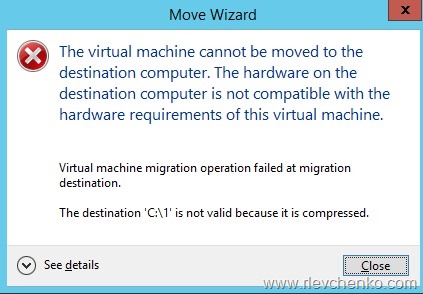
Live migration (LM) between Hyper-V hosts may fails with
“The virtual machine cannot be moved to the destination computer. The hardware on the destination computer is not compatible with the hardware requirements on this virtual machine. Virtual machine operation failed at migration destination. The destination ‘PathToVM’ is not valid because it’s compressed”
Reason:
We know that there are no special requirements for live migration in 2012/2012 R2:
But if you have enabled “Compress this drive to save disk space” on the disk level and compression on the folder level, live migration fails. Hyper-V doesn’t support compressed destination folder. I’ve never seen any official notes about it. If you have, please comment this post or contact me. IMO, it must be in the requirements for LM.
SMB 3.0 file shares can be used as shared storage for Hyper-V in Windows Server 2012 R2 and Windows Server 2012. With this capability, Hyper-V can store virtual machine files, which includes configuration, virtual hard disk (VHD) files, and snapshots, on SMB file shares. There a lot of configurations for SMB and Hyper-V (cluster Hyper-V + stand-alone SMB share, or cluster Hyper-V <> scale-out and etc.). This article covers basic steps for configuration SMB share for Hyper-V through powershell.
My demo: 2 hyper-v hosts (HV01.democorp.ru, HV02.democorp.ru), 1 file server (dc01.democorp.ru . !! it’s not recommended to make a SMB share on domain controller. it’s just a lab!!). 2 network adapters per server. File Server roles are installed by default.
#Create new SMB share on your file server (dc01 - my file server)
PS C:\Users\Administrator> New-SmbShare -Name Hyperv -Path S:\Shares\VM -FullAccess democorp\administrator,democorp\hv01$,democorp\hv02$,democorp\hvcl$

Name                          ScopeName                     Path                          Description
----                          ---------                     ----                          -----------
Hyperv                        *                             S:\Shares\VM

#Check permissions
PS C:\Users\Administrator> Get-SmbShareAccess hyperv

Name                    ScopeName               AccountName             AccessControlType       AccessRight
----                    ---------               -----------             -----------------       -----------
Hyperv                  *                       DEMOCORP\Administrator  Allow                   Full
Hyperv                  *                       DEMOCORP\HV01$          Allow                   Full
Hyperv                  *                       DEMOCORP\HV02$          Allow                   Full
Hyperv                  *                       DEMOCORP\hvcl$          Allow                   Full

#Set NTFS permissions from SMB share
PS C:\Users\Administrator> Set-SmbPathAcl -ShareName hyperv

#Create new vhd on smb share
PS C:\Users\administrator.DEMOCORP> New-VHD -Path \\dc01\Hyperv\VMs\test\testsmb.vhdx -Dynamic -SizeBytes 15Gb -Verbose
VERBOSE: Performing the operation "New-VHD" on target "\\dc01\Hyperv\VMs\test\testsmb.vhdx"

ComputerName            : HV01
Path                    : \\dc01\Hyperv\VMs\test\testsmb.vhdx
VhdFormat               : VHDX
VhdType                 : Dynamic
FileSize                : 4194304
Size                    : 16106127360
MinimumSize             :
LogicalSectorSize       : 512
PhysicalSectorSize      : 4096
BlockSize               : 33554432
ParentPath              :
DiskIdentifier          : 82453f86-1d5a-421f-890b-0a76366f4cbb
FragmentationPercentage : 0
Alignment               : 1
Attached                : False
DiskNumber              :
Key                     :
IsDeleted               : False
Number                  :

#Create new VM on share
PS C:\Users\administrator.DEMOCORP> New-VM -Name VMtest -SwitchName VM -VHDPath \\dc01\Hyperv\VMs\test\testsmb.vhdx -Path \\dc01\hyperv\vms -MemoryStartupBytes 1Gb -Generation 2 -Verbose

VERBOSE: New-VM will create a new virtual machine "VMtest".

Name   State CPUUsage(%) MemoryAssigned(M) Uptime   Status
----   ----- ----------- ----------------- ------   ------
VMtest Off   0           0                 00:00:00 Operating normally

#Add VM to cluster
PS C:\Users\administrator.DEMOCORP> Add-ClusterVirtualMachineRole -VirtualMachine VMTest -Name "SMB TEST" -Verbose
VERBOSE: Connecting to cluster on local computer HV01.

Name                                    OwnerNode                               State
----                                    ---------                               -----
SMB TEST                                HV01                                    Offline

#Check that VM was become HA
PS C:\Users\administrator.DEMOCORP> (Get-ClusterResource).Name
Cluster IP Address
Cluster Name
Virtual Machine Configuration New Virtual Machine
Virtual Machine Configuration VMtest
Virtual Machine New Virtual Machine
Virtual Machine VMtest

#Move VM storage from local storage to the SMB share
PS C:\Users\administrator.DEMOCORP> Move-VMStorage "new virtual machine" -DestinationStoragePath \\dc01\hyperv\VMs -ComputerName hv02 -Verbose
VERBOSE: Move-VMStorage will migrate the storage for virtual machine "New Virtual Machine".

#Check smb connections on hv02
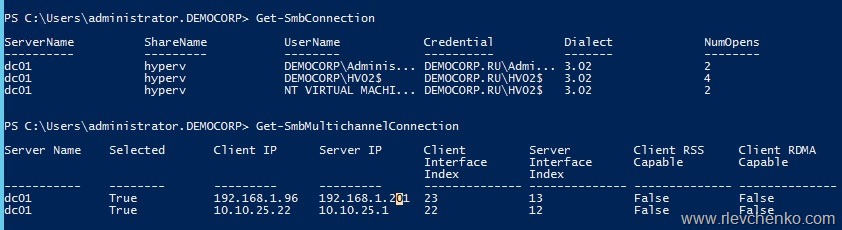
PS C:\Users\administrator.DEMOCORP> Get-SmbConnection

ServerName          ShareName           UserName            Credential          Dialect             NumOpens
----------          ---------           --------            ----------          -------             --------
dc01                hyperv              DEMOCORP\Adminis... DEMOCORP.RU\Admi... 3.02                2
dc01                hyperv              DEMOCORP\HV02$      DEMOCORP.RU\HV02$   3.02                4
dc01                hyperv              NT VIRTUAL MACHI... DEMOCORP.RU\HV02$   3.02                2

#Checks that smb multichannel works
PS C:\Users\administrator.DEMOCORP> Get-SmbMultichannelConnection

Server Name    Selected       Client IP      Server IP      Client         Server         Client RSS     Client RDMA
                                                            Interface      Interface      Capable        Capable
                                                            Index          Index
-----------    --------       ---------      ---------      -------------- -------------- -------------- --------------
dc01           True           192.168.1.96   192.168.1.201  23             13             False          False
dc01           True           10.10.25.22    10.10.25.1     22             12             False          False

#Get information about client networks interfaces
Get-SmbClientNetworkInterface
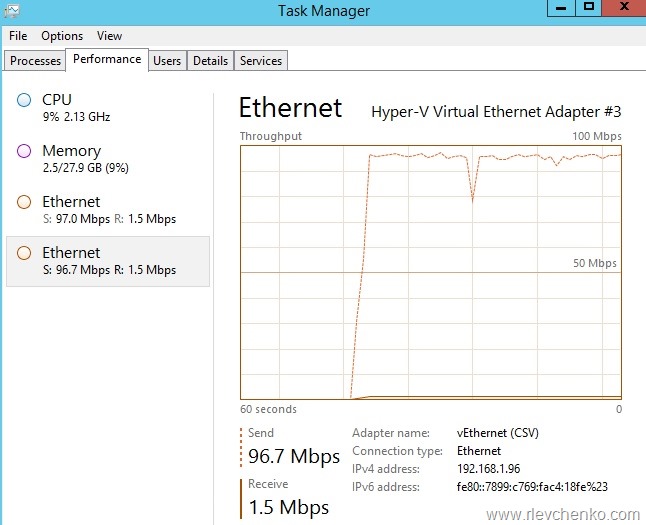
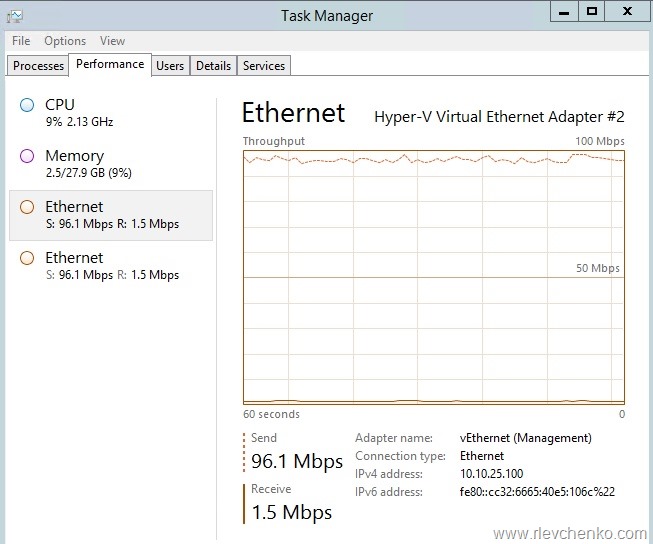
SMB Multichannel:
Virtual adapter vEthernet (CSV):
+ Virtual adapter vEthernet (Management):
~ 200 Mbps using 2×100 Mb adapters
Troubleshooting
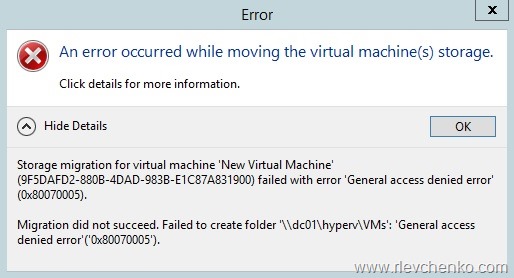
If you receive” “General Access denied error” during VM creation or migration, you have to check permissions on SMB share (my share is “Hyperv” + HV01 and HV02 are smb clients) and constrained delegation (notice that you must have installed Active Directory powershell module):



 UseIT | Roman Levchenko