How to manually merge snapshots in Hyper-V

There are lot of articles similar with that. Ok. This is a only just my recent experience

I have VM with only one AVHD (snapshot/checkpoint) . If your VM has a lot of AVHD files , you need to locate the latest.

For example, you have 3 snapshots for VM (VHD <> AVHD1<> AVHD2 <> AVHD3) .

VHD is the parent disk for AVHD1, AVHD1 is the parent for AVHD2 and AVHD2 is the parent for AVHD3.

Merging process: AVHD3 to AVHD2, AVHD2 to AVHD1 , AVHD1 to VHD

In my case I have only AVHD1 and parent VHD (on the picture below)

snapshots_merge_1

View (for 2012/2012R2, folder properties 2008/2008R2) –> activate “File Name Extensions” and change AVHD extension  to VHD
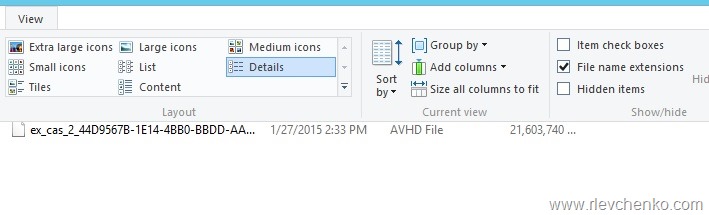
snapshots_merge_2

snapshots_merge_3

Go to Hyper-V Manager , click on Edit Disk on the right pane , Browse and locate your checkpoint (.vhd)
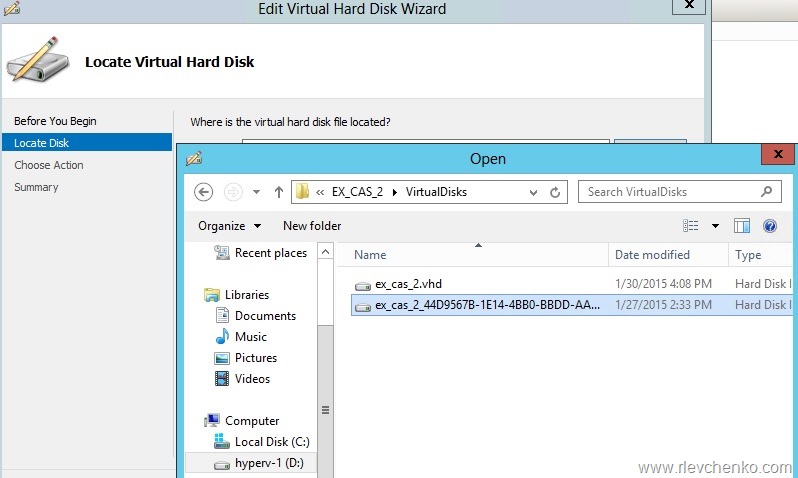
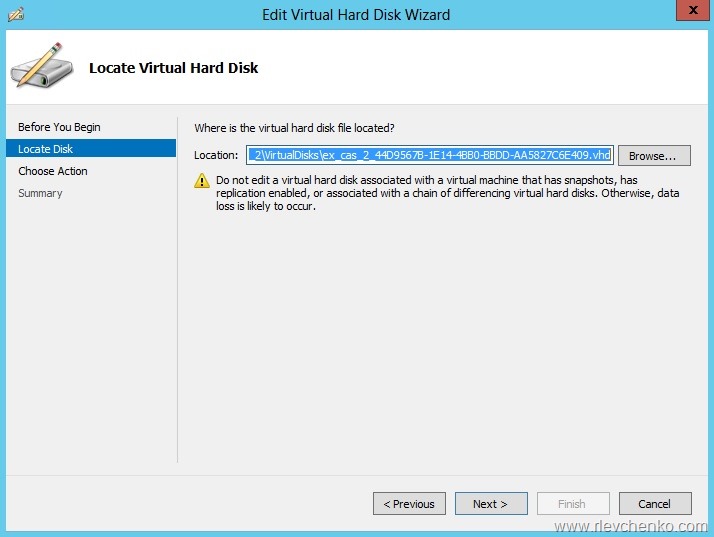
snapshots_merge_4

snapshots_merge_5

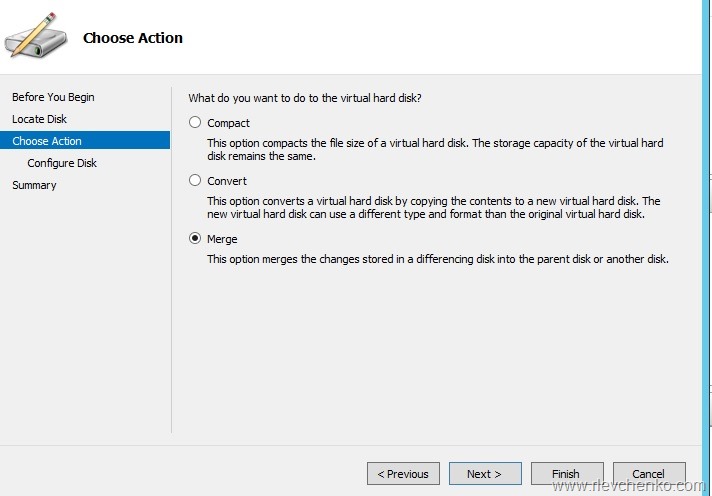
Click on the Next and choose Merge

snapshots_merge_6

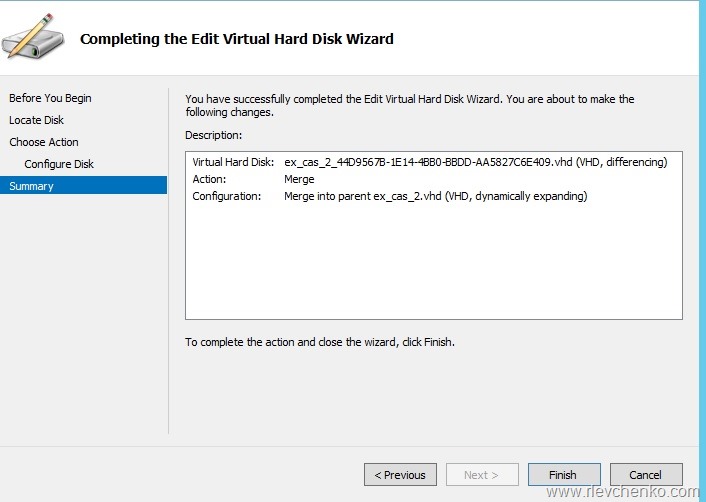
Merge the changes to the parent virtual disk

snapshots_merge_7

Click “Finish”

snapshots_merge_8

snapshots_merge_9

Result:

snapshots_merge_10

Merging AVHD to VHD is completed.Now you can use this merged VHD disk during VM creation.

Cannot unlock Windows Server 2003 after P2V

Problem

1. You use disk2vhd to perform P2V conversion of Windows Server 2003

disk2vhd_1

2. Disk2VHD created an VHD successfully

3. You attach this VHD to newly created virtual machine (Generation 1, host 2012 in my case) and start VM

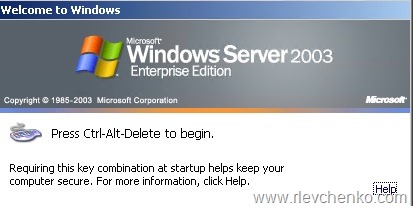
4. Unfortunately, you notice that mouse and keyboard are not captured and ctrl+alt+delete doesn’t unlock guest OS. This is because of there are no integration services inside guest OS. RDP+console access are not working too. Network adapter is not available = no RDP to guest OS.

2003_hyperv_integration

Solution

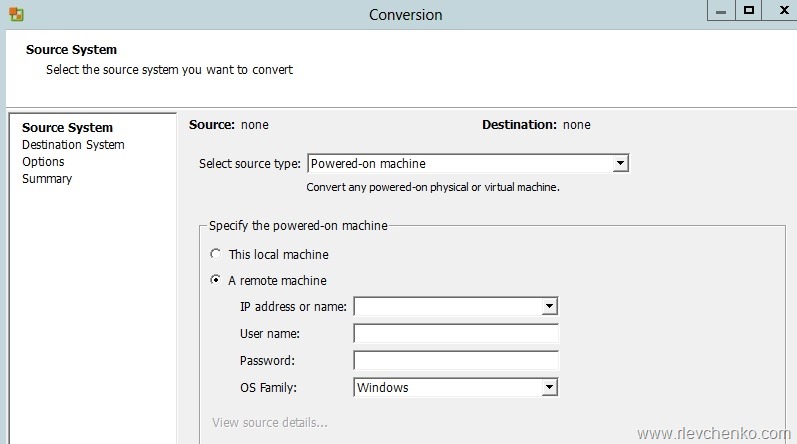
1. Download and install VMware vCenter Converter Standalone

2. Convert source machine to vmdk

vmware_converter_1

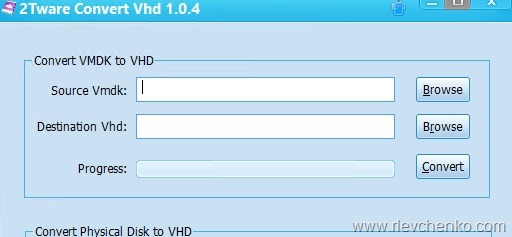
3. Convert vmdk to vhd using 2Tware

2tware converter

4. Attach VHD to VM and start VM.

Now Ctrl+alt+delete works + keyboard is captured. Insert ISO with integration services, install, restart VM and now mouse is available too.