
FizzBuzz is a very common task, asked in Dev/DevOps interviews. You are given a range of numbers and need to write algorithm using the following rules: if the number is divisible by 3, print “Fizz”; if the number is divisible by 5, output “Buzz”; if the number is divisible by both 3 and 5, the result should be “FizzBuzz”.
The main goal of the task is to check how you understand loops, conditionals and simple math using one of programming or scripting languages. I solved the task using PowerShell years ago: check this gist.
As I started to learn Python, I decided to share FizzBuzz implementation in this language to show how simple and “elegant” the solution can be.
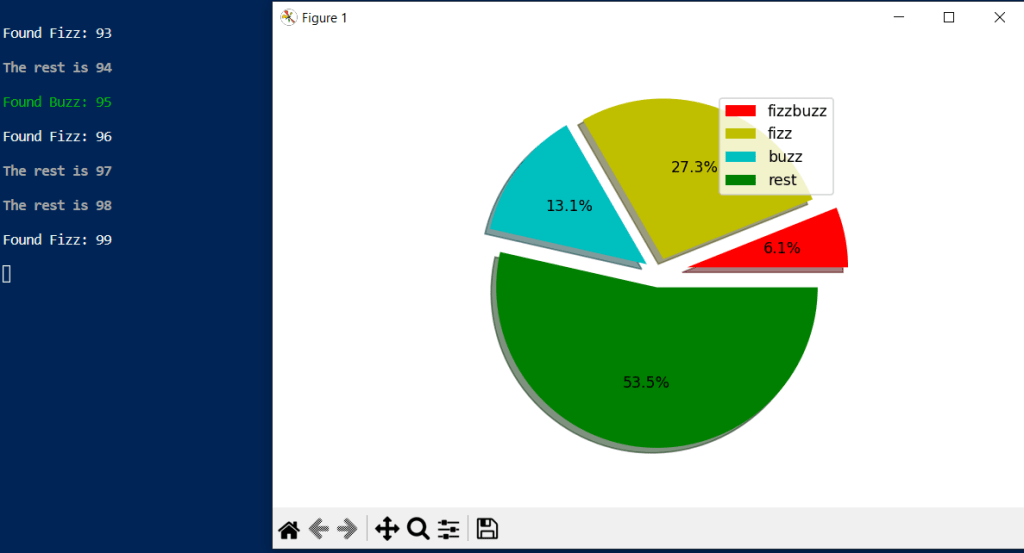
I used matplotlib and colorama to make a pie chart and add color text output respectively. Defined a function fizz_buzz with 2 arguments, and then used try/catch/finally statements to catch exceptions errors. Inside of the try, the for loop and if conditionals are described to meet all task’s rules. As a result, the function outputs numbers and categories based on rules, and makes a pie chart to show how many fizz, buzz, fizzbuzz found in percentage.
import matplotlib.pyplot as plt
import colorama
from colorama import Fore, Back, Style
colorama.init()

def fizz_buzz(x,y):
    """Python version of popular Fizz Buzz task"""
    fb = 0 ; b = 0; f = 0; rest = 0 # start values
    fb_type = ['fizzbuzz','fizz','buzz','rest'] # plot labels
    fb_colors = ['r','y','c','g'] # plot colors
    fb_explode = [0.2, 0.1, 0.1, 0.1] # plot fraction of the radius
    try:
        for n in range(x,y):
            if ((n % 3 == 0) and (n % 5 == 0)):
                fb += 1
                print(Fore.RED + f"Found FizzBuzz: {n}")
            elif n % 3 ==0:
                f += 1
                print(Fore.WHITE + f"Found Fizz: {n}")
            elif n % 5 ==0:
                b += 1
                print(Fore.GREEN + f"Found Buzz: {n}")
            else:
                rest += 1
                print(Style.BRIGHT + f"The rest is {n}")
            print(Style.RESET_ALL)
        fb_array = [fb, f, b, rest]
        plt.pie(fb_array, colors = fb_colors, explode = fb_explode, shadow = True, radius = 1.1, autopct = '%1.1f%%') # form a pie
        plt.legend(fb_type,loc='upper right') # show legend
        plt.show() # show a pie
    except:
        print(Style.BRIGHT + Fore.RED + "You provided wrong x and y")
        print(Style.RESET_ALL)
    finally:
        print(Style.BRIGHT + Fore.GREEN + "Author: github.com/rlevchenko")
        print(Style.RESET_ALL)
Result

 UseIT | Roman Levchenko