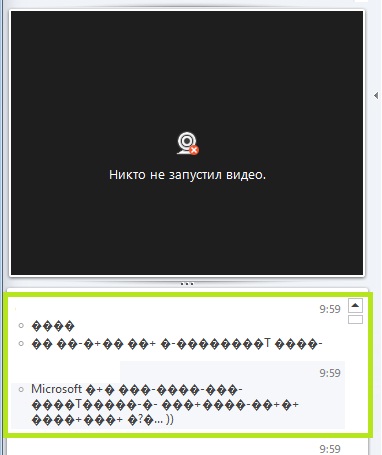
Cyrillic characters are not readable in Lync 2013 rich client when send from Lync Web application client. Plus the following characters from languages:
Ukrainian
Macedonian (Macedonia, FYROM)
Bulgarian
Serbian (Cyrillic)
Belarusian (Belarus)
Greek
Japanese
Arabic
Hebrew
Farsi
Kazakh
Microsoft’s Support answer:
Thank you very much for your patience throughout the work on your support request.
I am archiving the case at this time. The issue is planned to be fixed in the next Cumulative Update for Lync 2013, planned for October 2013.
If there will be any obstacles implementing the fix or change in the schedule for the Cumulative Update, we will let you know.
Here is a summary of the key points of the case for your records:
Analysis
1) The problem can be reproduced issue in lab.
2) The issue is seen when the receiving Lync 2013 client machine has set the language for Non-Unicode Programs in Control panel to “Russian”
3) Workaround: Set the language for Non-Unicode language to English (a language captured in codepage Windows 1250/1252 )
4) While working on the repro we encountered a conversation from Unicode (used by LWA) to the Cyrillic codepage 1252. Likely the aim would be to keep the encoding at Unicode to be consistent among the products.
5) Lync 2010 WebApp used a different encoding mechanism for the body test (application\octetstream) instead of multipart\text now in LWA 2013.
6) We have requested a hotfix with the Lync Product Team to address the failing display of Cyrillic characters when using a combination of Lync 2013 Web App and Lync 2013 rich client. There was support from the Mircosoft Russian account team, because a large customer community is affected by this.
7) The Product Team acknowledged this request and plans to deliver a fix for it in the next cumulative update, planned for October 2013.
UPDATE!!
To resolve this issue, install the following update:
2825630 Description of the Lync 2013 update: September 20, 2013
demo\scom.aa – Action service account
demo\scom.dw – Data Writer
demo\scom.dr – Data Reader
demo\scom.das – Data Action Service Account
Prepare SQL Server:
SCOM requires at least SQL Server 2008 R2 (for SCOM 2012) and 2008 R2 SP1 (SCOM 2012 SP1)
Using a different version of SQL Server for different Operations Manager features is not supported
SQL Server collation settings for all databases must be one of the following: SQL_Latin1_General_CP1_CI_AS, French_CI_AS, Cyrillic_General_CI_AS, Chinese_PRC_CI_AS, Japanese_CI_AS, Traditional_Spanish_CI_AS, or Latin1_General_CI_AS. No other collation settings are supported
For SCOM Operational Database you must have:
Supported version of SQL Server
Installed Database Services with SQL Server Full Text Search feature!
For SCOM Reporting:
Supported version of SQL Server
Installed and configured Reporting Services
Important: if you planning SCOM Reporting component you MUST install one locally on SQL Server with Reporting services. Don’t try to install Reporting remotely to SQL instance. (honestly, I tried :)). You will receive: NO SSRS Instances on SCOM MS Server.
I won’t show you how to install SQL Server. Just don’t forget to meet all requirements above.
Prepare SCOM server:
1) Install supported server OS (in my case, server 2012 Std)
2) Join to domain
Basically, SCOM uses the management server action account (scom.aa) and System Center Data Access service account (scom.das). You can use one account for both services, but Microsoft recommends to use two separate accounts for the best security. If you install Reporting SCOM component , you are prompted for two additional accounts, the Data Warehouse Write account (scom.dww) and the Data Reader account (scom.dr). Scom.aa and scom.das must be added to the local Administrators group on Management server and Operational Database. Scom.dww and scom.dr must have logon rights on SQL server where operational and reporting databases located.
6) I believe you already installed SQL Server instance and we are ready to add some changes for supporting communication between SCOM and SQL. The main goal my article to show you how we can use powershell and why it’s so cool. The first answer is we can do evertything without additional connections (RDP or something) to management servers. Just create Powershell remote session and go!go!go! 🙂 .
7) Create firewall rules on SQL Server. Standart ports pack for SQL Server : 1433- database service, 1434 – sql browser, 4020 – sql broker. Additionally, we have to enable on WMI-WINMGMT-In-TCP rule. Then we add SCOMLocaladm group to Administrators group on SQL Server and create SQL logins for SCOM Data reader and SCOM Data Write accounts




 UseIT | Roman Levchenko