In the previous post we discussed the tool that makes upgrading and updating process easier – vSphere Update Manager.
Now we are going to talk over manual process of updating core vSphere’s components – ESXi and vCenter. This type of updating is recommended when you have a small-sized infrastructure (whether it’s demo or production). Today’s FAQ does not cover complex architecture (with external SSO or etc.) and upgrading itself . To get some more information please use links in the references.
Note: updating is not a synonym for upgrading term. Jump from vSphere 6.0 to Update 1 is updating, vSphere 5.1 to 5.5 is upgrading
Hardware behind this post: 1 nested vCenter Appliance, 3 nested ESXi hosts, cluster (HA, DRS,FT) is configured
What’s the right update sequence for ESXi and vCenter ?
vCenter is always first, updating ESXi hosts are the second step. Additionally you need to check VMware Tools (3rd step) and VM Hardware Version (4th step) and upgrade them if applicable.
In vSphere 6 VMFS-3 is deprecated (there is no option to create VMFS-3 and support will no longer be available at the future vSphere releases). So, if you have VMFS-3 datastores you need to upgrade them to VMFS-5 (last step)
How to update vCenter Appliance?
Download ISO with updates @vmwarepatchportal

Note: patch-FP at the end of the filename means that is Full Patch , patch-TP – updates for the specific vCenter components and third-party
Mount ISO with updates (“…patch-FP.iso”, in my case) and run the following command:
software-packages install --iso --acceptEulas

Reboot vCenter:
shutdown reboot -r “vCenter Update”
OR
you can send updates to staging (without immediate installation) by using the following strings:
To stage updates:
software-packages stage --iso

To list staged content:
software-packages list --staged

To install (ISO must be attached):
software-packages install --staged
How to update Windows-based vCenter?
Go to VMware patch portal and download package for vCenter Windows

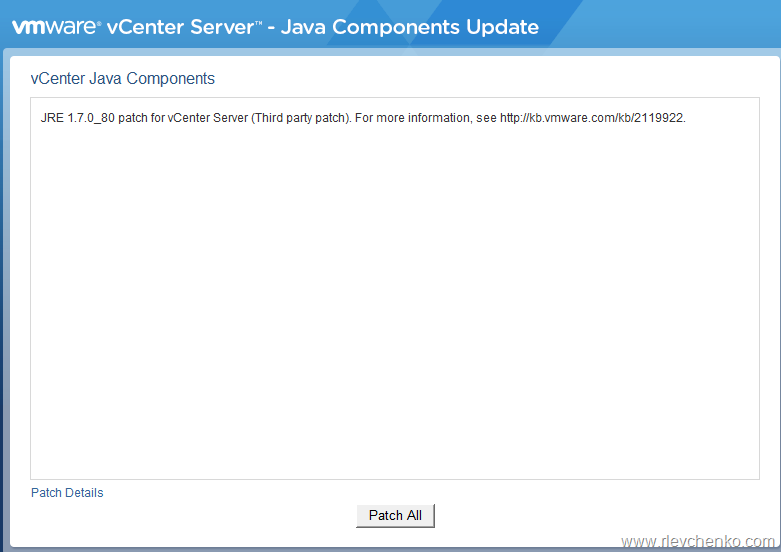
Attach ISO, run autorun.exe and click on “Patch All”

During the patch process, the Management Software undergoes a downtime as the patch restarts the services. So, be ready for vCenter unavailability for a short time.
How to update vCenter Appliance from the web client?
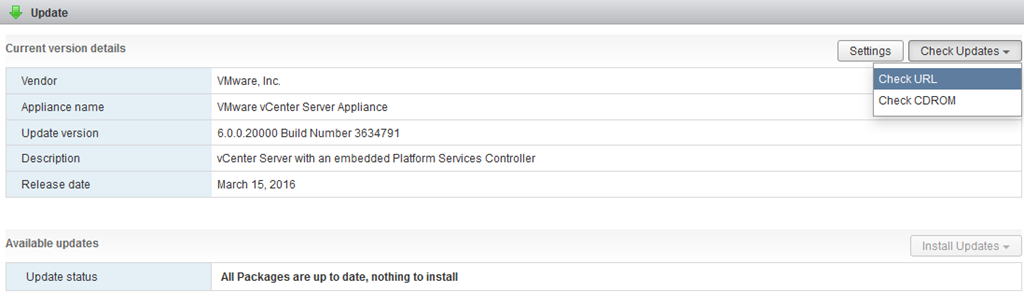
With the release vCenter Server Appliance 6.0 update 1b, you able to update vCenter Appliance from the web-based management interface (VAMI).
Open https://vcenterfqdn:5480, go to Update section and check for updates.
If your hosts are not up to date, click on “Install updates”.
and select “install all updates” or “install third-party updates”

How to update ESXi hosts?
Evacuate all critical workloads to the different host (place host to the maintenance mode), enable SSH and run (all updates can be downloaded in the same manner as for vCenter. the main difference – updates are in the zip-format):
escli software vib install -d /vmfs/volumes/deviceidhere/updates.zip

or use DCUI with enabled bash
Reboot host : vSphere client, reboot cmd or press F12 –> F11
How to upgrade VMware tools and VM hardware?
VMware Tools is a suite of utilities that enhances the performance guest operating system and improves management of the VM. There are different packages for VMware Tools: built-in vCenter/ESXi, OSPs (were specially created for some OS), OVM or Open VM Tools (newer version of OSPs and they are injected into some linux OS / new version can be installed from online repository). If VM has installed OVT, VMware tools status in vCenter is “guest managed” or “3rdParty/unmanaged”
VM Hardware version reflects the virtual machine’s supported virtual hardware features. These features correspond to the physical hardware available on the ESXi host on which you create the virtual machine. Virtual hardware features include BIOS and EFI, available virtual PCI slots, maximum number of CPUs, maximum memory configuration, and other characteristics typical to hardware
vSphere 6 supports the following versions :
- VMware tools from ESXi 5.0 and later
- VM Hardware 4.0 and later
VMware Tools and VM Hardware upgrading steps:
- Create backup or snapshot of VM
- Upgrade VM Tools by using web-client (install/upgrade VMware tools option , ESXi will mount ISO to the guest OS, run setup.exe on the mounted drive and follow instructions)
- If your guest OS is Linux-based VMware tools (Xubuntu, in my case):
sudo apt-get install open-vm-tools
- Power Off VM or Reboot VM (if you have the latest VM Hardware version)
- Right click on VM and select “Compatibility > Upgrade VM Compatibility” and then “Yes”
- Power On VM
References
Update sequence for vSphere 6.0 and its compatible VMware products
vSphere 6.0 Upgrade Guide
VMware Support For OVT
One-to-one mapping between VMware Tools for ESX/ESXi version-number codes






 UseIT | Roman Levchenko