
Windows PowerShell Web Access, first introduced in Windows Server® 2012, acts as a Windows PowerShell gateway, providing a web-based Windows PowerShell console that is targeted at a remote computer. To configure this feature we need to install WindowsPowershellWebAccess component and create PSWA application with security rule for it.
My demo: Server 2012 Datacenter named as Server1 and Windows 8 for remote connection
From client OS I create new remote powershell session to Server1:
New-PsSession Server1
Enter to created PS session:
Enter-PsSession 2
And install PWA feature:
Install-WindowsFeature WindowsPowerShellWebAccess -IncludeManagementTools -Verbose

Then we need to create app for PSWA:
Install-PswaWebApplication -UseTestCertificate -Verbose

More details: http://technet.microsoft.com/en-us/library/jj592894.aspx
By default, there are no rules for user authorization , so we have to create one:
Add-PswaAuthorizationRule -ComputerGroupName * -configurationName * -UserGroupName * -Verbose
“*” allows all users access to all endpoints on all computers. This essentially turns off authorization rules (just for test)
More details: http://technet.microsoft.com/en-us/library/jj592890.aspx
Open your browser and type https://servernamewherepswaisinstalled/pswa . In my case, https://server1/pswa

Enter your credentials, computer name and sign in

There are no many options in PWA. The most interesting is ability to SAVE your session.
For example, let’s create alias $upd = Get-Service wua* in the current session

Then click on SAVE button to sign out without losing our alias $upd
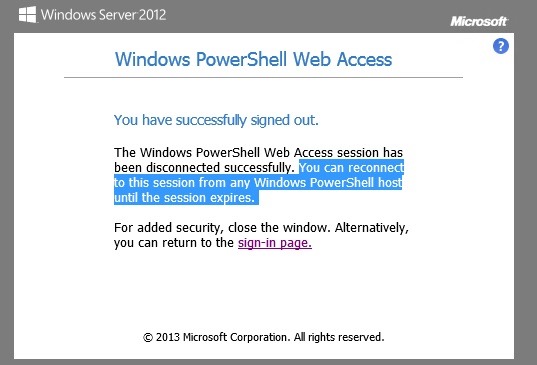
Sign in again to PWA and notice that PWA saved our session as PSWA1 .
We can create new session or continue to work in previously created session (try to use $upd. it works)

TIP: TAB works in PWA too. Use it as usual.
More details about configuring PWA: http://technet.microsoft.com/en-gb/library/hh831611.aspx
 UseIT | Roman Levchenko