
Hi, folks!
Protected Network is turned on by default for every VMs in 2012 R2. To control this option you can use GUI and Powershell.
It’s very simple to find “switch” in GUI,

but you may be a little bit confused during searching “protected network” value in powershell.
For example,
PS C:\Windows\system32> Get-VM -VMName SC_VMMR2|Get-VMNetworkAdapter|fl *


IovWeight                : 0
IovQueuePairsRequested   : 1
IovQueuePairsAssigned    :
IovInterruptModeration   : Default
IovUsage                 :
ClusterMonitored         : True
VirtualFunction          :
IsLegacy                 : False
IsManagementOs           : False
IsExternalAdapter        : False
Id                       : Microsoft:1A5B79A6-EDCA-47A0-B023-E21139DFDB96\AE7DB00D-E40F-4FE2-ABA3-C57C1EB7A081
AdapterId                :
DynamicMacAddressEnabled : True
MacAddress               : 00155D191E06
MacAddressSpoofing       : Off
SwitchId                 :
Connected                : False
PoolName                 : Primordial
SwitchName               :
AclList                  : {}
ExtendedAclList          : {}
IsolationSetting         : Microsoft.HyperV.PowerShell.VMNetworkAdapterIsolationSetting
CurrentIsolationMode     : Vlan
RoutingDomainList        : {}
DhcpGuard                : Off
RouterGuard              : Off
PortMirroringMode        : None
IeeePriorityTag          : Off
VirtualSubnetId          : 0
DynamicIPAddressLimit    : 0
StormLimit               : 0
AllowTeaming             : Off
VMQWeight                : 100
IPsecOffloadMaxSA        : 512
VmqUsage                 :
IPsecOffloadSAUsage      :
VFDataPathActive         : False
VMQueue                  :
MandatoryFeatureId       : {}
MandatoryFeatureName     : {}
VlanSetting              : Microsoft.HyperV.PowerShell.VMNetworkAdapterVlanSetting
BandwidthSetting         :
BandwidthPercentage      : 0
TestReplicaPoolName      :
TestReplicaSwitchName    :
StatusDescription        :
Status                   :
IPAddresses              : {}
ComputerName             : HV01
Name                     : Network Adapter
IsDeleted                : False
VMId                     : 1a5b79a6-edca-47a0-b023-e21139dfdb96
VMName                   : SC_VMMR2
VMSnapshotId             : 00000000-0000-0000-0000-000000000000
VMSnapshotName           :
Key                      :
Err..where is the value for Protected Network?
Ok. Let’s begin from what is really protected network (PN). PN adds to Hyper-V Cluster an ability to monitor a network health for every vNICs and moves VMs to another Hyper-V node if a network disconnection is detected. = it’s a really cluster monitoring option.
To change settings of vNICs we have to use Set-VMNetworkAdapter cmdlet:
I’m dummy and want to get some help:
Get-Help Set-VMNetworkAdapter -Detailed

..

 -NotMonitoredInCluster <bool>

..
hmm..is it what we are looking for?
Let’s try to apply some changes.
Get-VM -VMName SC_VMMR2|Set-VMNetworkAdapter -NotMonitoredInCluster $True

Get-VM -VMName SC_VMMR2| Get-VMNetworkAdapter|fl *

..
ClusterMonitored         : False
..
Check in GUI:
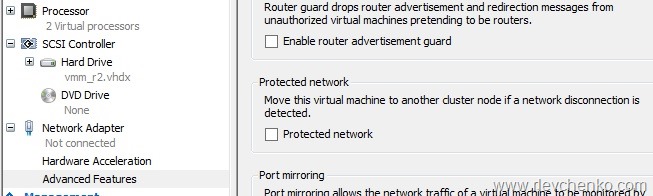
And finally we found what we wanted.
Sometimes (err..I mean always) we need to really understand what this feature provides and how it works.
Links:
 UseIT | Roman Levchenko