Altaro VM Backup now supports Windows Server 2016

Altaro has released new version of their main product – Altaro VM Backup. Now you can protect the latest Windows Server environment by using the most advanced technologies like Augmented Inline Deduplication, Boot VM from Backup and place your backup copies to offsite location through the completely redeveloped Offsite Server.

Augmented Inline Deduplication

Altaro VM Backup with Augmented Inline deduplication improves backup and restore speed. It’s the best deduplication in the industry, creating the smallest backup size. Augmented Inline deduplication runs across all backup jobs, no need to group VMs together (no use of post processing).

  • Much lower storage requirements. Creates the smallest backup size compared to other backup vendors
  • Faster backups (less data to transfer)
  • Efficiency increases as more VM backups are added. Huge savings on storage!

Boot VM from Backup

Instantly boot any VM version from the backup location without affecting backup integrity. The VM may optionally be restored in the background while booted without losing any changes.

  • When a VM goes down, boot a Virtual Machine directly from your Backup Location in seconds, allowing users to continue to access it right away
  • In the background the VM Backup is restored back to the Hypervisor as well as any new changes made to the booted VM
  • Once all changes are recovered, simply switch over to the recovered VM. This minimizes Downtime to a simple VM reboot at the end of the Recovery process, instead of having to wait for the entire VM to restore.

image

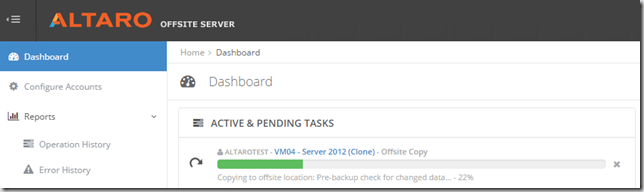
A brand new look for the Altaro Offsite Server

A completely redeveloped Backup Server, with a brand-new look, is the best tool around to manage your offsite backups. The Altaro Offsite Server is used to replicate VM backups to an offsite location. The Altaro Offsite Server can be connected to the machine running an instance of Altaro VM Backup both via LAN or WAN connection.
image

Miscellaneous  improvements

VM Backup leverages CPU multithreading and arithmetic abilities to boost up the backup speed and to achieve lower CPU requirements.

New cloud tool (Cloud Management Console) to manage and monitor entire Altaro VM Backup environment will be available in the next VM Backup release. CMC gives a different dashboards to quickly get backup state , offsite copies, system health information. CMC will be also shipped with the abilities to push upgrades, configurations and licenses to the distributed VM backup instances.

Upgrade it or start free trial right now

Altaro VM Backup is available for free trial (30 day unlimited edition and completely free for up to 2 VMs per host)

Automate Exchange 2016 installation and DAG configuration with PowerShell DSC

Hi, folks!

Version 1.0 has already been published here (simple script for automation of Exchange 2016 installation. can be used on multiple servers).

Today’s version is a little bit improved (2 separate files for 2-node configuration, 535 and 420 strings respectively, can be easy scaled out with copy-paste to more than 2 nodes). It helps you to install Exchange, prepare environment for DAG (prestage CNO, witness and etc) and create one with at least 2 members

Each node can be configured simultaneously (it’s not needed to wait while fist node finishes all tasks and etc. just run both scripts, relax and get a cup of coffee). It’s also ideally suitable for using as a part of VMM Service Templates or other kinds of unattended installations (I’ll show you it later)

If you’d like to get script files – write me directly or leave request in the comments. I’ll send you zip-file.

Update: scripts are at my GitHub Repo. Thanks for stars and commits!

What does script do (exch01.ps1)?

  • Sets network settings (DNS, IP, GW) on targeted server
#..........
xIPAddress NewIPAddress #Set IPv4 on Ethernet adapter
        {
            IPAddress      = $ip
            InterfaceAlias = "Ethernet"
            SubnetMask     = 24
            AddressFamily  = "IPV4"
            DependsOn       = "[xDhcpClient]DisabledDhcpClient"
        }
         xDefaultGatewayAddress GW #Set GW address
        {
            Address = $gw
            InterfaceAlias = "Ethernet"
            AddressFamily = "IPv4"
            DependsOn     = "[xIPAddress]NewIPAddress"
        }
#...........
  • Installs required prerequisites for Exchange (including UCMA) and does reboot if it’s really required
#........
 WindowsFeature WebNet45
        {
            Ensure = 'Present'
            Name = 'Web-Net-Ext45'
        }
     WindowsFeature WebReq
        {
            Ensure = 'Present'
            Name = 'Web-Request-Monitor'
        }
     WindowsFeature WebSrv
        {
            Ensure = 'Present'
            Name = 'Web-Server'
        }
#.........
  • Adds server to domain and reboots it to apply changes
 xComputer DomainJoin
        {
          Name = $nodename
          DomainName = $domainname
          Credential = $creds
          DependsOn  = "[xDnsServerAddress]DNSServers"
        }
  • Setups Exchange and checks if reboot is required after installation
 xExchInstall InstallExchange
        {
            Path       = "C:\ExchInstall\Exch\Setup.exe"
            Arguments  = "/mode:Install /role:Mailbox /OrganizationName:""$netbios"" /Iacceptexchangeserverlicenseterms"
            Credential = $Creds

            DependsOn  = '[xPendingReboot]BeforeExchangeInstall'
        }
  • Adds and checks that DAG CNO is existed and required permissions are applied
#...........
SetScript = {
                    $creds = New-Object Management.Automation.PSCredential("$($using:netbios)\Administrator",(ConvertTo-SecureString $using:pass -AsPlainText -Force))
                    New-ADComputer -Name DAG01 -DNSHostName DAG01 -DisplayName DAG01 -Enabled $false -Credential $creds -verbose
                    $DC=(Get-ADDomainController -Credential $creds).HostName
                    ICM -ComputerName $DC -Credential $creds -ScriptBlock {
                    #Variables
                    $dagacc = Get-ADComputer DAG01 #-Credential $creds
                    $dagldap="LDAP" + '://' + $dagacc.DistinguishedName
                    $dagadsi = New-Object DirectoryServices.DirectoryEntry $dagldap
                    #.....
                    }
#...........
  • Configures witness server, DAG and generates status of successful completion
#........
xExchDatabaseAvailabilityGroup DAG
        {
            Name                                 = $dagSettings.DAGName
            Credential                           = $creds
            AutoDagTotalNumberOfServers          = $dagSettings.AutoDagTotalNumberOfServers
            AutoDagDatabaseCopiesPerVolume       = $dagSettings.AutoDagDatabaseCopiesPerVolume
           #.......
            WitnessDirectory                     = 'C:\FSW'
            WitnessServer                        = $dagSettings.WitnessServer
        }
#.........

Script file named as exch02.ps1 has almost the same steps with the following differences:

  1. Waits while Exchange setup initiated on the first node finishes Active Directory preparation and then starts Exchanges installation on the second node
  2. Waits while DAG becomes online and only then starts adding the second node
  3.  No witness and DAG CNO preparation (hope it’s clear)

Requirements are still the same: exchange media, UCMA package, certificates for securing MOF-files (optional). All prerequisites (except Exchange media files) are in the zip-file (all-in-one).

Thanks for reading and have a nice week!