Hyper-V 3.0 interaction with registry and how it was in 2008 R2

Russian version/Русская версия

Virtual machine configuration is stored in XML-file and Hyper-V (Virtual Machine Management Service) always maintains (read/write queries) this file when some changes occurs. No doubt, XML-file is the most important file for every VM. It’s true, but Hyper-V operates with registry so often as with XML. I prefer to say , Hyper-V has a “mirror of some VM configuration” in the registry (especially, in the previous versions of Windows Server) .The main target of this post is to show you  how Hyper-V works together with XML and registry. I use powershell cmdlets from Hyper-V module and some test VMs. At the end of article, I describe differences between registry hives , related with Hyper-V in 2008 R2 and 2012.

Let’s start with the the most simple operation for every Hyper-V administrator

Creating a basic VM (no vhd, no connected adapters):

PS C:\Windows\system32> New-VM -Name WikiTest1 -NoVHD -Generation 2

Name      State CPUUsage(%) MemoryAssigned(M) Uptime   Status
----      ----- ----------- ----------------- ------   ------
WikiTest1 Off   0           0                 00:00:00 Operating normally

Virtual Machine Management server (VMMS) sends a query CreateFile  that creates VM_GUID.XML  file in the folder  Virtual Machines (by default), in my case for my VM WikiTest1 was created file EF259B05-2CDE-4317-8ACF-E80CB364D66C.xml. If we add additional network adapter without VM switch connection, VMMS sends a query WriteFile and updates our XML-file with the new synthetic adapter  (note that PortName and SwitchName are empty):

<type_id type="string">Virtual Machines</type_id>
    <version type="integer">1280</version>
  </properties>
  <settings>
    <global>
      <logical_id type="string">EF259B05-2CDE-4317-8ACF-E80CB364D66C</logical_id>
    </global>
         .
    <PortName type="string"></PortName>
    <SwitchName type="string"></SwitchName>
         .
<vdev013>
      <device type="string">2fc216b0-d2e2-4967-9b6d-b8a5c9ca2778</device>
      <flags type="integer">1</flags>
      <instance type="string">1314FBB0-9385-44B7-8DDE-18D4118EFDDD</instance>
      <name type="string">Synthetic Ethernet Port</name>
    </vdev013>

Connecting VM to Hyper-V switch

PS C:\Windows\system32> Connect-VMNetworkAdapter -VMName WikiTest1 -SwitchName VM

VMMS sends query WriteFile and updates XML-file (IsConnected=True, PortName+SwitchName with GUIDs :

<IsConnected type="bool">True</IsConnected>
 <MacAddress type="string">00-00-00-00-00-00</MacAddress>
 <MacAddressIsStatic type="bool">False</MacAddressIsStatic>
 <PortName type="string">6FAC595A-2507-4690-A840-5746B09D81A1</PortName>
 <SwitchName type="string">FDDD2A3C-85E3-4807-9E28-7A40C8D494A7</SwitchName>

But It’s not enough and VMMS (with vmswitch.sys) creates new registry hives (RegCreateKey, RegSetValue queries) for every PortName in the SwitchName hive:

HKLM\System\CurrentControlSet\Services\VMSMP\Parameters\SwitchList\FDDD2A3C-85E3-4807-9E28-7A40C8D494A7\6FAC595A-2507-4690-A840-5746B09D81A1\

hyperv_regedit

Match PortName and SwitchName from XML and GUIDs in the registry hive – they are certainly identical. SwitchName  has a constant UID (one for every hyper-v switch) and it is fixed for all VMs. PortName characterizes each dedicated port (port is an interpretation of “Virtual Adapter” term) on the hyper-v virtual switch.

Note: HKLM\System\CurrentControlSet\Services is also a registry hive where Hyper-V keeps general settings for Integration Services and VMMS

Note: if you decide to disconnect VM from hyper-v switch ,  only “IsConnected” flag  in the XML configuration file sets from True to  False (PortName and SwitchName are with their last values ).And if you reconnect VM again , VMMS rewrites XML with the absolutely new PortName UID

Configuring VLANs on port

PS C:\Windows\system32> Set-VMNetworkAdapterVlan -VMName WikiTest1 -Trunk -AllowedVlanIdList 10-20 -NativeVlanId 15

VMMS creates new subhive under the virtual switch hive

HKLM\System\CurrentControlSet\Services\VMSMP\Parameters\SwitchList\FDDD2A3C-85E3-4807-9E28-7A40C8D494A7\6FAC595A-2507-4690-A840-5746B09D81A1\Properties\{952c5004-4465-451c-8cb8-fa9ab382b773} , for keeping VLAN settings for PortName 6FA.. on the Switch with UID FDDD…

VMMS also updates XML file with feature references and data block for VLANs (feature ID = UID of created RegValues):

  <Feature_952C5004-4465-451C-8CB8-FA9AB382B773>
        <DisplayName type="string">Ethernet Switch Port VLAN Settings</DisplayName>
        <Flags type="integer">0</Flags>
        <Setting_958A1AF7-327C-42F4-8864-517617BDE876>
        <Data type="bytes">AgAAAAAADwAAAAAAAAAAAAAAAAAAAAAACwAAACgAAAAAAAAAAAAAAAoACwAMAA0A
DgAPABAAEQASABMAFAA=
</Data>
</Setting_958A1AF7-327C-42F4-8864-517617BDE876>
       <Settings>
         <Id type="string">958A1AF7-327C-42F4-8864-517617BDE876</Id>
       </Settings>
     </Feature_952C5004-4465-451C-8CB8-FA9AB382B773>
     <Feature_C885BFD1-ABB7-418F-8163-9F379C9F7166>

Mirror of configuration” in the Registry (VLAN Settings in the REG_BINARY):

hyperv_regedit_1

How it was in 2008 R2?

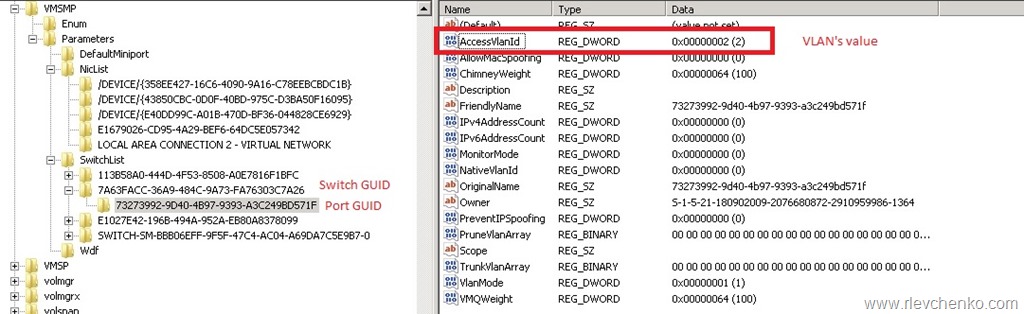
​In 2008 R2 VM “mirror of configuration”  in the registry was different (even want to say “completely different”). When you create a VM and connect one to the virtual switch, VMMS updates in XML PortName + SwitchName values  and creates new RegValues in the registry with the only difference being that the setting VLAN (mostly) in pure form (REG_DWORD) are located in the registry. Within the XML we can see only references to GUIDs of these parameters. We do not see here any VLAN settings, neither feature with data blocks.

Reg_DWORD values for VLAN Settings (AccessVlanId = VLAN ID in the VM network adapter properties):

hyperv_regedit_2008

Ok, so what? As you know, the main difference between VM import/export in 2008 R2 and 2012 is the required existence of the EXP-file for a successful import (in 2012/R2 we do not need it). EXP-file is created in the process of exporting the VM and provides additional configuration information (guess what!?).

Hint (excerpt from exp-file for VM with VlanID 25):

<VALUE.OBJECT><INSTANCE CLASSNAME="Msvm_VLANEndpointSettingData"><PROPERTY NAME="AccessVLAN" TYPE="uint16"><VALUE>25</VALUE></PROPERTY>

Dell PE VRTX: Unable to see shared LUNs in BIOS and during OS installation

Dell PowerEdge VRTX is a new concept of “blade systems” or shared infrastructure. All-in-one system ideally provides benefits of enterpise blade systems for small and medium organizations. Certified for Windows Server 2012/R2 and recommended for using in the WSFC (Windows Server Failover Clustering) configurations. Cluster can be build with up to 4 server nodes and shared SAS Perc 8 controller (can be in the optional fault-tolerance configuration) with up to 25 2.5” SAS HDDs.

Configuration of Dell VRTX is very easy for understanding , but has a limitation:

The Shared PERC 8 also cannot be supported as booting shared storage for operating system installation for the host. 

Let’s imagine, you create a few virtual disks and map to VRTX server slots, run Lifecycle controller (F10 during POST check) – Deployment OS. One is the biggest advantage of Lifecycle – it prepares your system for OS installation (it means that LC adds an additional volume which consists required drivers for specified OS). During OS installation you notice that SHARED LUNs are visible and you ABLE to “click next” and continue OS installation. BUT! SHARED LUNS ON DELL VRTX DOESN’T SUPPORT BOOT VOLUMES. If you will continue with shared LUN, there are some bugs and issues (OS cannot boot and something like this)

So, 1) shared luns only for data not for booting usage 2) use local disks on server slots or mirrored SD cards (only for vmware, not for Hyper-V)

Reference: PowerEdge VRTX: M520 and M620 Blades Not Able to See Shared PERC 8 Virtual Disk in host BIOS and LC

TIP: Configuration of Dell VRTX for Windows Server 2012 R2 WSFC will be available soon