
SMB 3.0 file shares can be used as shared storage for Hyper-V in Windows Server 2012 R2 and Windows Server 2012. With this capability, Hyper-V can store virtual machine files, which includes configuration, virtual hard disk (VHD) files, and snapshots, on SMB file shares. There a lot of configurations for SMB and Hyper-V (cluster Hyper-V + stand-alone SMB share, or cluster Hyper-V <> scale-out and etc.). This article covers basic steps for configuration SMB share for Hyper-V through powershell.
My demo: 2 hyper-v hosts (HV01.democorp.ru, HV02.democorp.ru), 1 file server (dc01.democorp.ru . !! it’s not recommended to make a SMB share on domain controller. it’s just a lab!!). 2 network adapters per server. File Server roles are installed by default.
#Create new SMB share on your file server (dc01 - my file server)
PS C:\Users\Administrator> New-SmbShare -Name Hyperv -Path S:\Shares\VM -FullAccess democorp\administrator,democorp\hv01$,democorp\hv02$,democorp\hvcl$

Name                          ScopeName                     Path                          Description
----                          ---------                     ----                          -----------
Hyperv                        *                             S:\Shares\VM

#Check permissions
PS C:\Users\Administrator> Get-SmbShareAccess hyperv

Name                    ScopeName               AccountName             AccessControlType       AccessRight
----                    ---------               -----------             -----------------       -----------
Hyperv                  *                       DEMOCORP\Administrator  Allow                   Full
Hyperv                  *                       DEMOCORP\HV01$          Allow                   Full
Hyperv                  *                       DEMOCORP\HV02$          Allow                   Full
Hyperv                  *                       DEMOCORP\hvcl$          Allow                   Full

#Set NTFS permissions from SMB share
PS C:\Users\Administrator> Set-SmbPathAcl -ShareName hyperv

#Create new vhd on smb share
PS C:\Users\administrator.DEMOCORP> New-VHD -Path \\dc01\Hyperv\VMs\test\testsmb.vhdx -Dynamic -SizeBytes 15Gb -Verbose
VERBOSE: Performing the operation "New-VHD" on target "\\dc01\Hyperv\VMs\test\testsmb.vhdx"

ComputerName            : HV01
Path                    : \\dc01\Hyperv\VMs\test\testsmb.vhdx
VhdFormat               : VHDX
VhdType                 : Dynamic
FileSize                : 4194304
Size                    : 16106127360
MinimumSize             :
LogicalSectorSize       : 512
PhysicalSectorSize      : 4096
BlockSize               : 33554432
ParentPath              :
DiskIdentifier          : 82453f86-1d5a-421f-890b-0a76366f4cbb
FragmentationPercentage : 0
Alignment               : 1
Attached                : False
DiskNumber              :
Key                     :
IsDeleted               : False
Number                  :

#Create new VM on share
PS C:\Users\administrator.DEMOCORP> New-VM -Name VMtest -SwitchName VM -VHDPath \\dc01\Hyperv\VMs\test\testsmb.vhdx -Path \\dc01\hyperv\vms -MemoryStartupBytes 1Gb -Generation 2 -Verbose

VERBOSE: New-VM will create a new virtual machine "VMtest".

Name   State CPUUsage(%) MemoryAssigned(M) Uptime   Status
----   ----- ----------- ----------------- ------   ------
VMtest Off   0           0                 00:00:00 Operating normally

#Add VM to cluster
PS C:\Users\administrator.DEMOCORP> Add-ClusterVirtualMachineRole -VirtualMachine VMTest -Name "SMB TEST" -Verbose
VERBOSE: Connecting to cluster on local computer HV01.

Name                                    OwnerNode                               State
----                                    ---------                               -----
SMB TEST                                HV01                                    Offline

#Check that VM was become HA
PS C:\Users\administrator.DEMOCORP> (Get-ClusterResource).Name
Cluster IP Address
Cluster Name
Virtual Machine Configuration New Virtual Machine
Virtual Machine Configuration VMtest
Virtual Machine New Virtual Machine
Virtual Machine VMtest

#Move VM storage from local storage to the SMB share
PS C:\Users\administrator.DEMOCORP> Move-VMStorage "new virtual machine" -DestinationStoragePath \\dc01\hyperv\VMs -ComputerName hv02 -Verbose
VERBOSE: Move-VMStorage will migrate the storage for virtual machine "New Virtual Machine".

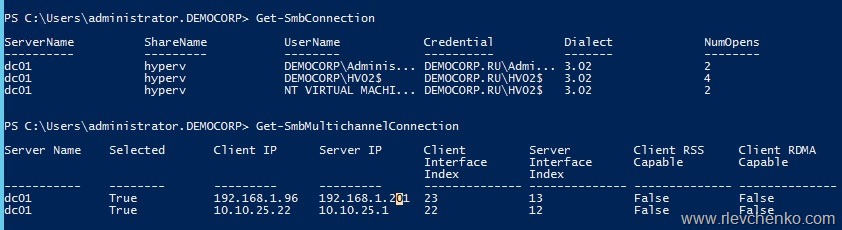
#Check smb connections on hv02
PS C:\Users\administrator.DEMOCORP> Get-SmbConnection

ServerName          ShareName           UserName            Credential          Dialect             NumOpens
----------          ---------           --------            ----------          -------             --------
dc01                hyperv              DEMOCORP\Adminis... DEMOCORP.RU\Admi... 3.02                2
dc01                hyperv              DEMOCORP\HV02$      DEMOCORP.RU\HV02$   3.02                4
dc01                hyperv              NT VIRTUAL MACHI... DEMOCORP.RU\HV02$   3.02                2

#Checks that smb multichannel works
PS C:\Users\administrator.DEMOCORP> Get-SmbMultichannelConnection

Server Name    Selected       Client IP      Server IP      Client         Server         Client RSS     Client RDMA
                                                            Interface      Interface      Capable        Capable
                                                            Index          Index
-----------    --------       ---------      ---------      -------------- -------------- -------------- --------------
dc01           True           192.168.1.96   192.168.1.201  23             13             False          False
dc01           True           10.10.25.22    10.10.25.1     22             12             False          False

#Get information about client networks interfaces
Get-SmbClientNetworkInterface
SMB Multichannel:
Virtual adapter vEthernet (CSV):
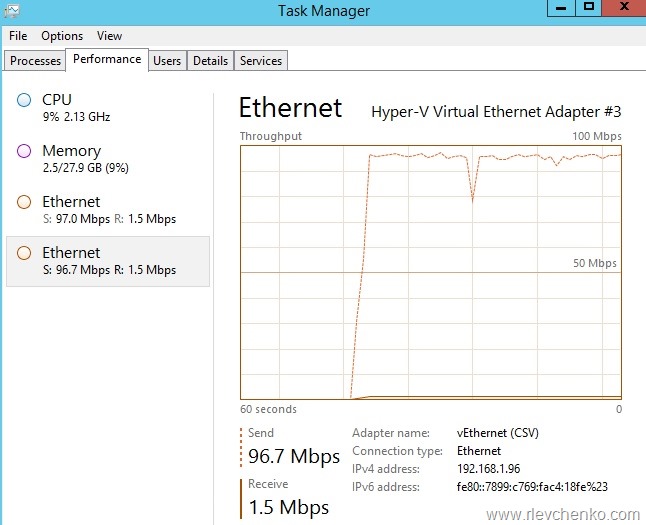
+ Virtual adapter vEthernet (Management):
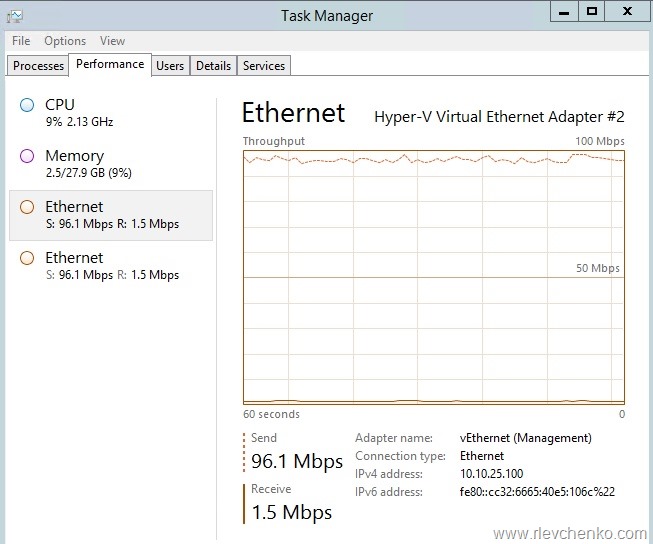
~ 200 Mbps using 2×100 Mb adapters
Troubleshooting
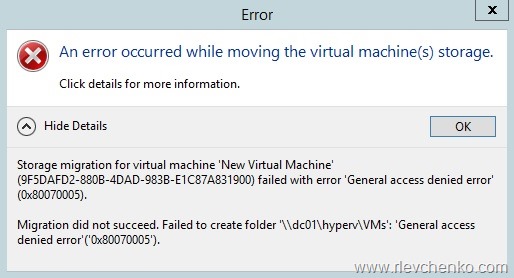
If you receive” “General Access denied error” during VM creation or migration, you have to check permissions on SMB share (my share is “Hyperv” + HV01 and HV02 are smb clients) and constrained delegation (notice that you must have installed Active Directory powershell module):
Get-SmbShareAccess Hyperv

Grant-SmbShareAccess -Name Hyperv -AccountName domain\comp$ -AccessRight Full

Enable-SMBDelegation -SmbServer dc01 -SMBClient HV01

Enable-SMBDelegation -SmbServer dc01 -SMBClient HV02

Enable-SMBDelegation -SmbServer dc01 -SMBClient HVCL
SMB Multichannel:
Multichannel should be enabled (see client and server configuration)
2 or more network adapters
OR
1 or more NICs capable with RSS
OR
1 or more NICs capable with RDMA
OR
NIC Teaming (at least 2 NICs)
PS C:\Users\Administrator> Get-SmbClientConfiguration

.........
EnableMultiChannel                    : True
DormantFileLimit                      : 1023
EnableSecuritySignature               : True
ExtendedSessionTimeout                : 1000
FileInfoCacheEntriesMax               : 64

PS C:\Users\Administrator> Get-SmbServerConfiguration

----
...................................

EnableLeasing                   : True
EnableMultiChannel              : True
EnableStrictNameChecking        : True
OplockBreakWait                 : 35
PendingClientTimeoutInSeconds   : 120
RequireSecuritySignature        : True
EnableSMB1Protocol              : True
EnableSMB2Protocol              : True
Smb2CreditsMax                  : 2048
Smb2CreditsMin                  : 128

PS C:\Users\Administrator> Get-SmbServerNetworkInterface

Scope Name          Interface Index     RSS Capable         RDMA Capable        Speed               IpAddress
----------          ---------------     -----------         ------------        -----               ---------
*                   13                  True                False               100 Mbps            192.168.1.201
*                   13                  True                False               100 Mbps            fe80::590e:87d7:...
*                   12                  True                False               100 Mbps            10.10.25.1
*                   12                  True                False               100 Mbps            fe80::34ce:f145:...
 UseIT | Roman Levchenko